




What Is WooCommerce Coupon Auto-Apply?
By default, WooCommerce only applies a discount when a customer types a coupon code at checkout. Customers who qualify for a discount but do not have (or cannot find) the code simply miss out. The Classic Monks Enable Auto-Apply Coupons feature closes that gap: when a coupon is enabled for auto-apply and the customer’s cart meets its conditions, the discount is added automatically.
Auto-apply is powered by native WooCommerce coupon restrictions (minimum spend, products, categories) plus an optional user-role condition. When those conditions are met during cart calculation, the coupon applies on its own. The behavior is the same as a manually entered code, except the customer does nothing.
Why You Need It
Auto-applied discounts remove a real point of friction:
- No code lookup. Customers rarely search for a code when they do not already have one. Auto-apply gives them the discount anyway.
- Higher conversion. Seeing a discount already applied at checkout removes the “was I supposed to get a discount?” doubt.
- Fewer abandoned carts. A discount that appears automatically is more likely to close the sale than one the shopper has to remember to enter.
- Targeted by conditions. Because it honors native usage restrictions, you can scope auto-apply deals to specific spend levels, products, or categories.
How to Set Up WooCommerce Coupon Auto-Apply in WordPress
Step 1: Enable the Feature
- Open Classic Monks in your WordPress admin sidebar.
- Open the WooCommerce tab.
- Open the Coupons subtab.
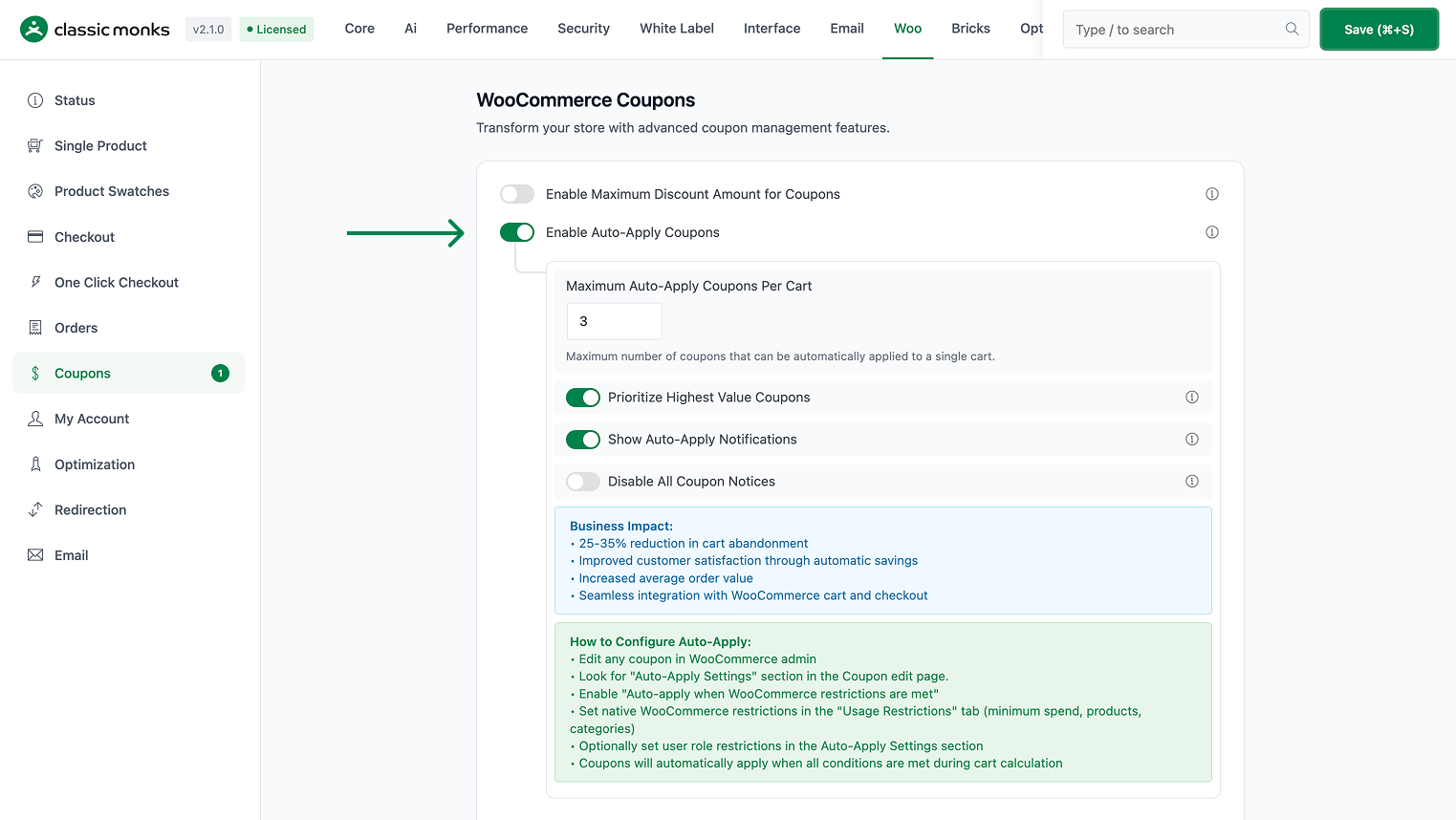
- Toggle on Enable Auto-Apply Coupons. The nested options expand below the toggle.
Step 2: Configure Global Options
- Maximum Auto-Apply Coupons Per Cart (default 3, range 1-10) caps how many coupons can be auto-applied to a single cart. Set it to 1 if you only ever want the single best deal applied.
- Prioritize Highest Value Coupons (On by default) applies the highest-value eligible coupon first rather than a random one when several match.
- Show Auto-Apply Notifications (On by default) displays a notice to the customer when a coupon is auto-applied.
- Disable All Coupon Notices (Off by default) suppresses every coupon-related notice for a quieter checkout. Turn this on only if you want no coupon messaging at all.
Step 3: Enable Auto-Apply on a Coupon
- Go to WooCommerce > Coupons (or Marketing > Coupons) and open the coupon.
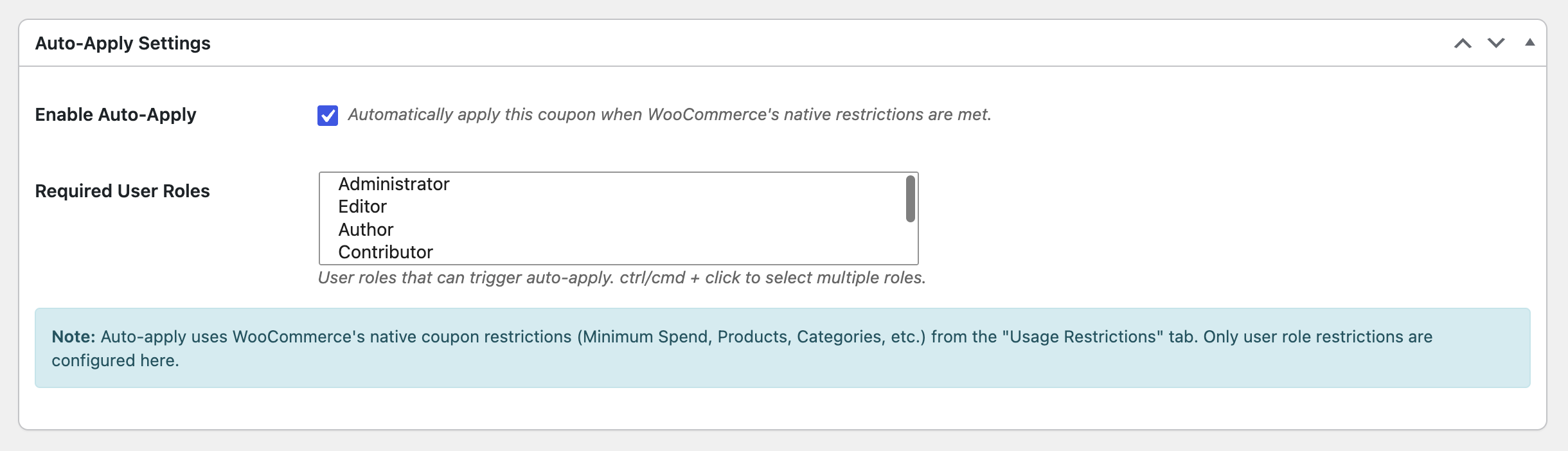
- In the Auto-Apply Settings section, turn on Auto-apply when WooCommerce restrictions are met.
- In the native Usage Restrictions tab of the coupon, set the conditions for the deal (minimum spend, products, categories). These restrictions determine when the coupon auto-applies.
- Optionally set a user-role condition in the Auto-Apply Settings section, then save the coupon.
Step 4: Save Changes and Test
Click Save Changes in the Classic Monks settings. Build a cart that satisfies the coupon’s conditions and confirm the discount is applied automatically, with the notification shown (if enabled).
Configuration Options
| Option | Behavior | Default |
|---|---|---|
| Enable Auto-Apply Coupons | Master toggle for the feature. | Off |
| Maximum Auto-Apply Coupons Per Cart | Max number of coupons auto-applied to one cart (1-10). | 3 |
| Prioritize Highest Value Coupons | Apply the highest-value eligible coupon first when several match. | On |
| Show Auto-Apply Notifications | Show a notice when a coupon is auto-applied. | On |
| Disable All Coupon Notices | Suppress all coupon notices for a quieter experience. | Off |
Per-coupon, the Auto-Apply Settings section controls whether that coupon auto-applies and any optional user-role condition. The native Usage Restrictions tab defines the cart conditions.
What Gets Affected
- Cart calculation: eligible auto-apply coupons are added automatically during cart updates
- Customer notifications: an “auto-applied” notice appears when the notification option is on
- The order total: reflects the auto-applied discount exactly as a manual code would
- Coupon usage tracking: auto-applied coupons still count toward their usage limits
What Does NOT Get Affected
- Manual coupon entry: customers can still type a code alongside auto-applied ones (subject to your stacking rules)
- Coupon eligibility rules: auto-apply honors the coupon’s existing restrictions; it does not bypass them
- Coupon codes: the codes themselves are unchanged and still work as codes
- Products and prices: auto-apply only adds a discount; it does not alter product data
Advanced Options (Developers)
The feature registers its hooks in functions/woocommerce/coupons/auto-apply-coupons.php:
add_action( 'woocommerce_cart_loaded_from_session', 'cm_auto_apply_eligible_coupons', 25 );
add_action( 'woocommerce_add_to_cart', 'cm_auto_apply_eligible_coupons', 25 );
add_action( 'woocommerce_cart_item_removed', 'cm_auto_apply_eligible_coupons', 25 );
add_action( 'woocommerce_cart_updated', 'cm_auto_apply_eligible_coupons', 25 );

add_action( 'add_meta_boxes', 'cm_add_auto_apply_coupon_meta_box' );
add_action( 'save_post_shop_coupon', 'cm_save_auto_apply_coupon_meta_box' );
add_action( 'save_post_shop_coupon', 'cm_flush_auto_apply_coupon_cache' );woocommerce_cart_loaded_from_session,woocommerce_add_to_cart,woocommerce_cart_item_removed, andwoocommerce_cart_updated(all priority 25) callcm_auto_apply_eligible_coupons(), so eligible coupons are (re)applied whenever the cart changes during a session.add_meta_boxesregisters the Auto-Apply Settings meta box;save_post_shop_couponsaves it and flushes the auto-apply cache on coupon save. Coupon cache is also flushed ondeleted_post.woocommerce_removed_couponandwoocommerce_cart_emptiedtrack when a user removes or clears a coupon, so a deliberately removed code is not reapplied on the next cart update.
Common Use Cases
Welcome and first-order deals. Auto-apply a first-purchase discount so new customers immediately get their deal at checkout without hunting for a code, lifting first-order conversion.
Spend-threshold incentives. Create a “spend $75, get $10 off” coupon restricted to that minimum and let it auto-apply. Customers who cross the threshold see the reward appear, encouraging them to add one more item to qualify.
Category and product promotions. Auto-apply a discount on a specific category or product line only when those items are in the cart, using native usage restrictions to scope the offer.
Free-shipping nudges. Auto-apply a free-shipping coupon when a minimum spend is met, removing the biggest common checkout objection automatically.
Tiered best-deal logic. Leave Prioritize Highest Value Coupons on so when multiple conditions are met, the customer gets the strongest applicable offer rather than the first one matched.

Add your first comment to this post