




What Does the Feature Do?
WooCommerce checkout fields often show only a label, with the input empty until the customer types. The Enable Checkout Field Placeholders feature adds placeholder text inside the common fields so customers see what to enter.
It applies placeholders to billing fields such as first name, last name, phone, email, city, and postcode, and to the default address fields such as first name, last name, state, postcode, and city.
Why You Need It
Placeholder text guides input without adding labels or fields:
- Customers see the expected value before typing (for example, “Email” or “Phone Number”)
- The form feels clearer and reduces guesswork
- Short placeholder hints keep the checkout compact
- No template edits are needed; the placeholders apply from the settings
How to Add Placeholders to WooCommerce Checkout Fields
Step 1: Enable the Feature
- In WordPress admin, open Classic Monks > WooCommerce.
- Open the Checkout settings area.
- Toggle on Enable Checkout Field Placeholders.
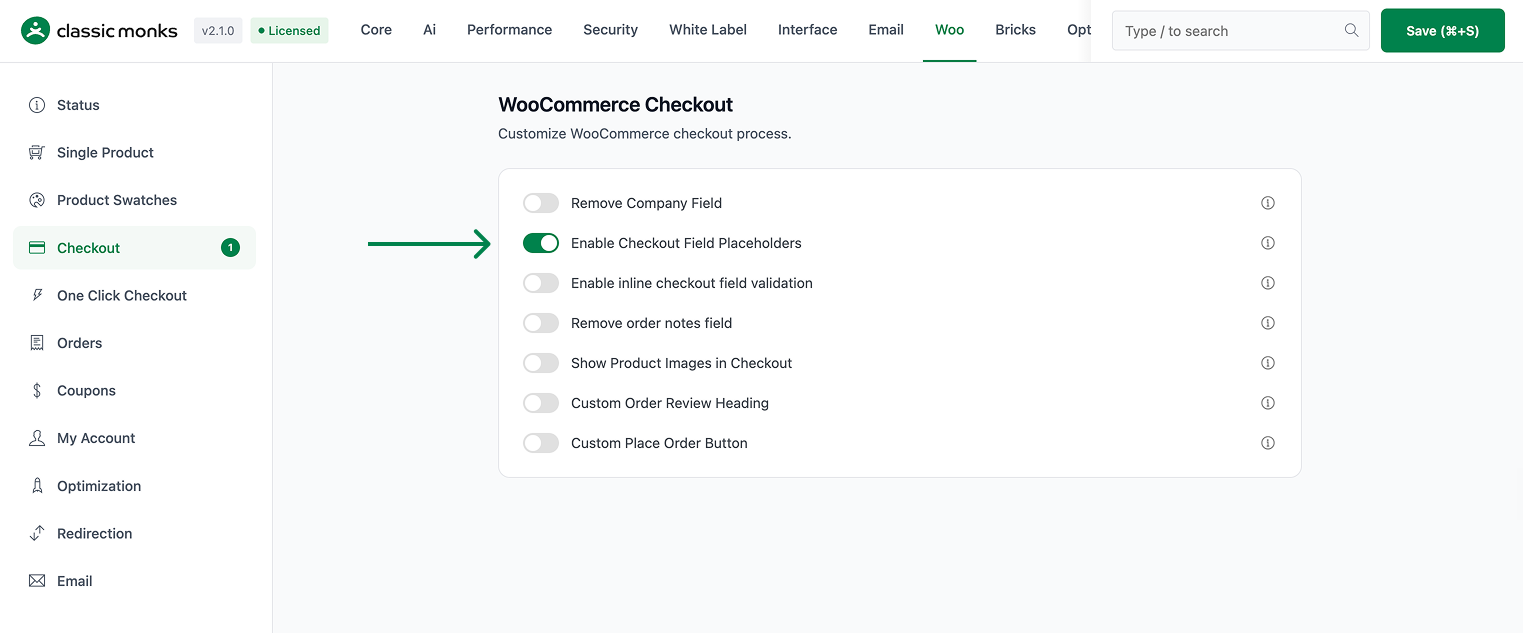
Step 2: Save and Test
Click Save Changes. Visit the checkout page and confirm the billing and address fields show placeholder text when empty.
Configuration Options
| Option | Default |
|---|---|
| Enable Checkout Field Placeholders | Off |
The placeholder text is set by the feature (for example, First Name, Email, Phone Number, City, Pincode). There are no per-field configuration fields; the placeholders apply to the standard checkout and address fields automatically.
What Gets Affected
- Standard checkout billing fields: first name, last name, phone, email, city, postcode
- Default address fields: first name, last name, state, postcode, city
- Empty inputs: display the placeholder until a value is entered
What Does NOT Get Affected
- Field labels: these remain visible above the inputs
- Field validation: validation messages still appear as normal
- Custom fields added by other plugins: those are handled by their own plugins
- Saved customer data: the feature only affects empty field placeholder text
Advanced Options (Developers)
The feature registers its hooks in functions/woocommerce/woocommerce-functions.php:
add_filter( 'woocommerce_checkout_fields', 'cm_add_checkout_placeholders' );
add_filter( 'woocommerce_default_address_fields', 'cm_add_address_placeholders' );woocommerce_checkout_fieldscallscm_add_checkout_placeholders()to set placeholders on the standard billing fields (first name, last name, phone, email, city, postcode).woocommerce_default_address_fieldscallscm_add_address_placeholders()to set placeholders on the default address fields (first name, last name, state, postcode, city).

Add your first comment to this post