




What Is a Maximum Coupon Discount?
WooCommerce percentage coupons apply a percentage of the cart total with no upper limit. A “20% off” coupon on a $2,000 cart always gives $400, whether or not that is what you intended. The Classic Monks Enable Maximum Discount Amount for Coupons feature lets you cap that: you set a maximum dollar amount a coupon can discount, and the customer’s saving is reduced to the cap when the calculated discount would exceed it.
Example: a 20% coupon with a $50 maximum on a $2,000 cart gives $50, not $400. The coupon remains a 20% coupon; it is just capped.
You set the cap per coupon in a Maximum discount amount field on the coupon edit screen, and you can provide a default value that is suggested whenever a new coupon is created.
Why You Need It
Unlimited percentage discounts are a profit risk on high-value carts:
- Profit margin protection. A 50% coupon on a $5,000 order is a $2,500 loss. A cap contains the damage.
- Promotional control. Run a higher cap during a sale and a lower one in normal periods, with different caps per role or product category.
- Abuse prevention. A cap stops a shared or leaked code from producing a huge discount on a big cart.
- Forecastable cost. A fixed maximum makes the maximum cost of any promotion predictable.
How to Set a Maximum Coupon Discount in WordPress
Step 1: Enable the Feature
- Open Classic Monks in your WordPress admin sidebar.
- Open the WooCommerce tab.
- Open the Coupons subtab.
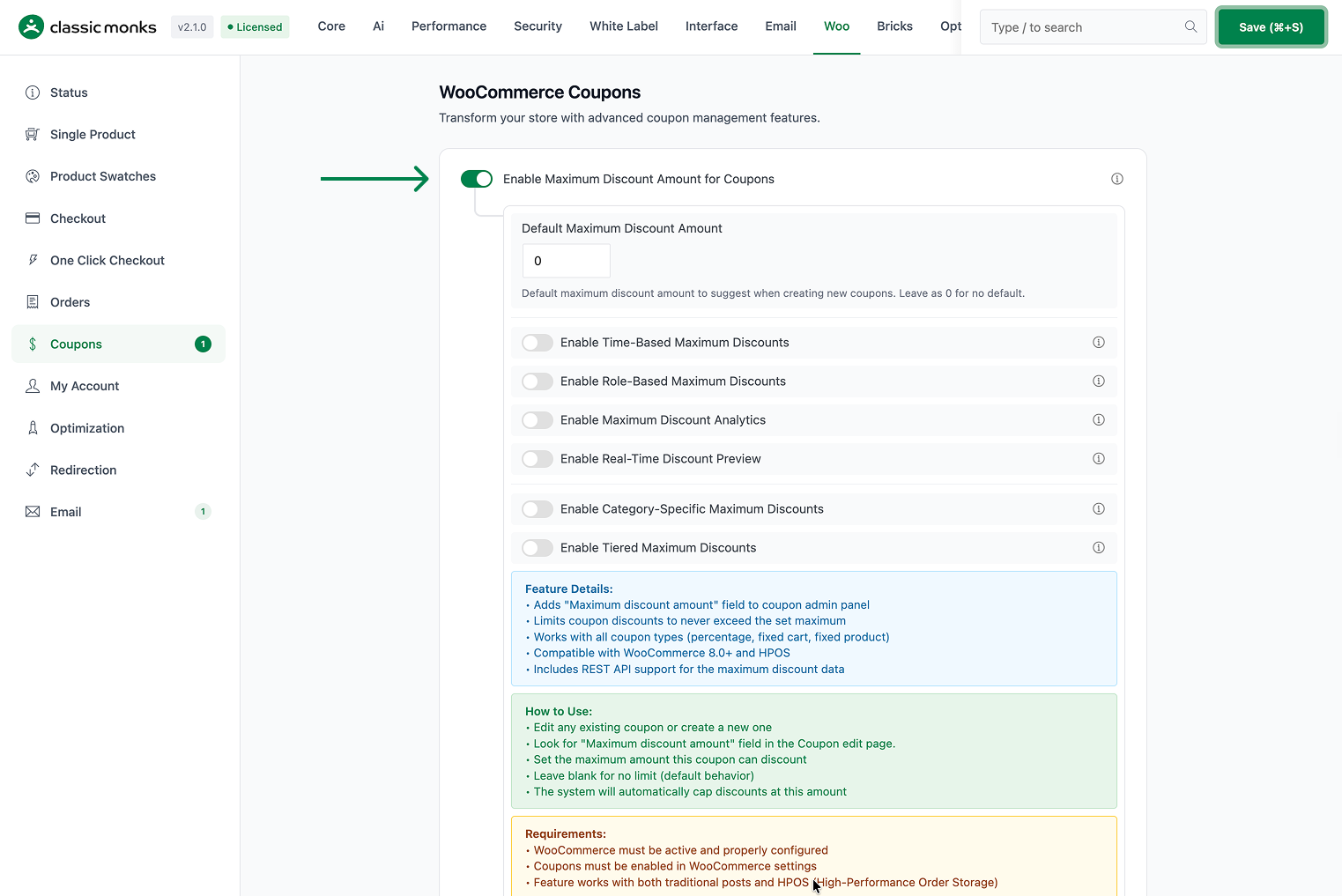
- Toggle on Enable Maximum Discount Amount for Coupons. The nested options expand below the toggle.
Step 2: Set a Default Maximum
- Default Maximum Discount Amount is the value suggested in the coupon editor when you create a new coupon. Leave it at 0 for no default, or enter a suggested cap like
50so every new coupon starts with a sensible limit.
Step 3: Enable the Limit Types You Need
Each bullet below is an optional toggle that layers a different kind of cap. Enable only the ones you use:
- Enable Time-Based Maximum Discounts lets you vary the cap by time of day, day of week, or season (for example, a higher cap on weekends).
- Enable Role-Based Maximum Discounts sets different caps per user role (for example, a higher cap for VIP customers, a lower one for guests).
- Enable Category-Specific Maximum Discounts applies different caps per product category (for example, a tight cap on electronics, a generous one on clothing).
- Enable Tiered Maximum Discounts raises the cap as the cart total grows (for example, $50 max for carts under $200, $100 max above $500).
- Enable Maximum Discount Analytics records when a coupon hits its cap so you can review performance.
- Enable Real-Time Discount Preview shows customers the capped discount calculation live, with the limit clearly communicated.
Step 4: Set the Cap on a Coupon
- Go to WooCommerce > Coupons (or Marketing > Coupons).
- Create or edit a coupon.
- In the Maximum discount amount field, enter the cap for that coupon.
- Leave it blank for no limit (default behavior).

Step 5: Save Changes and Test
Click Save Changes in the Classic Monks settings. Then add a high-value product to the cart and apply the coupon; confirm the discount line shows the capped amount, not the full percentage.
Configuration Options
| Option | Behavior | Default |
|---|---|---|
| Enable Maximum Discount Amount for Coupons | Master toggle for the feature. | Off |
| Default Maximum Discount Amount | Suggested cap value on new coupons. 0 = no default. | 0 |
| Enable Time-Based Maximum Discounts | Vary the cap by time of day, day of week, or season. | Off |
| Enable Role-Based Maximum Discounts | Different caps per user role. | Off |
| Enable Category-Specific Maximum Discounts | Different caps per product category. | Off |
| Enable Tiered Maximum Discounts | Raise the cap as cart total increases. | Off |
| Enable Maximum Discount Analytics | Track when caps are hit. | Off |
| Enable Real-Time Discount Preview | Show the capped discount to customers live. | Off |
The per-coupon Maximum discount amount field on the coupon edit screen is what actually caps a given coupon. The nested toggles add extra limiting dimensions on top of it.
What Gets Affected
- Coupon calculation: the discount is capped at the coupon’s maximum amount
- Customer-facing price: the discount line and totals reflect the capped saving
- Coupon data: the cap is stored per coupon and exposed over the REST API
- Product, cart, and checkout displays: the capped discount and (with the preview enabled) the limit are shown to customers
What Does NOT Get Affected
- The coupon code and type: a percentage coupon stays a percentage coupon
- The coupon’s other restrictions: minimum spend, product, and usage limits still apply normally
- Coupons without a cap: a coupon with no maximum amount set behaves exactly as before
- Manual code entry: customers can still type a code; the cap applies to the calculated discount
Advanced Options (Developers)
The feature registers its hooks in functions/woocommerce/coupons/coupon-max-discount.php:
add_action( 'add_meta_boxes', 'cm_add_max_discount_coupon_meta_box' );
add_action( 'save_post', 'cm_save_max_discount_coupon_meta_box' );

add_filter( 'woocommerce_coupon_get_discount_amount', 'cm_coupon_apply_max_discount_limit', 10, 5 );
add_filter( 'woocommerce_coupon_is_valid', 'cm_coupon_validate_max_discount', 10, 3 );
add_filter( 'woocommerce_rest_prepare_shop_coupon', 'cm_coupon_add_max_discount_to_api', 10, 3 );woocommerce_coupon_get_discount_amountapplies the cap to the coupon’s calculated discount (the core hook).woocommerce_coupon_is_validvalidates the coupon in light of the cap.woocommerce_rest_prepare_shop_couponadds the maximum discount data to the REST API response.add_meta_boxesandsave_postregister and save the per-coupon cap field.- When the real-time preview is on,
wp_enqueue_scriptsloads the preview assets andwp_ajax_cm_get_discount_previewreturns the preview calculation. woocommerce_single_product_summary,woocommerce_before_checkout_form, andwoocommerce_before_cartdisplay the max discount info contextual to the page.
Common Use Cases
High-value product protection. Cap a “20% off everything” coupon so it can never discount more than $100. A shopper buying a $4,000 laptop gets a capped $100 saving instead of an $800 one, protecting your margin on large orders.
VIP and wholesale tiers. Use role-based maximums to hand VIP members a generous cap while guests get a much lower one, rewarding your best customers without opening a broad risk.
Category margin control. Electronics often has thinner margins than clothing. Set a strict category-specific cap on electronics while allowing a generous one on apparel, so a single campaign cannot erode the low-margin line.
Sales periods. Use time-based and tiered maximums together: a higher cap when cart totals climb during a clearance, and a lower cap in quiet periods, so promotional cost scales predictably.
Audit and cleanup. With Maximum Discount Analytics and Real-Time Discount Preview on, you can see exactly which codes hit their caps and how often, then tighten or raise limits in the next campaign.

Add your first comment to this post