




What Does the Feature Do?
The default WooCommerce admin orders table shows order number, date, status, and customer basics. The Enable Custom Order Columns feature adds optional columns so more data is visible at a glance. You turn on the columns you want, and each one appears in the orders list showing live order data.
The full set of available columns covers discounts, item counts, billing address, customer identity, payment, notes, shipping, tax, status history, categories, and downloadable or virtual item counts.
When to Enable It
Enable Custom Order Columns when you process enough orders that opening each one to check payment, shipping, or customer details wastes time:
- Customer service teams that need billing email and addresses visible on the list
- Fulfillment teams that want shipping method and shipping total at a glance
- Finance and accounting work that uses payment method, discount, and tax columns
- Reporting needs that benefit from a visual scan across many orders
Keep it off if the default columns already give your team what it needs.
How to Add Custom Columns to the WooCommerce Orders Table
Step 1: Enable the Feature
- In WordPress admin, open Classic Monks > WooCommerce.
- Open the Orders settings area.
- Toggle on Enable Custom Order Columns. The column toggles expand below it.
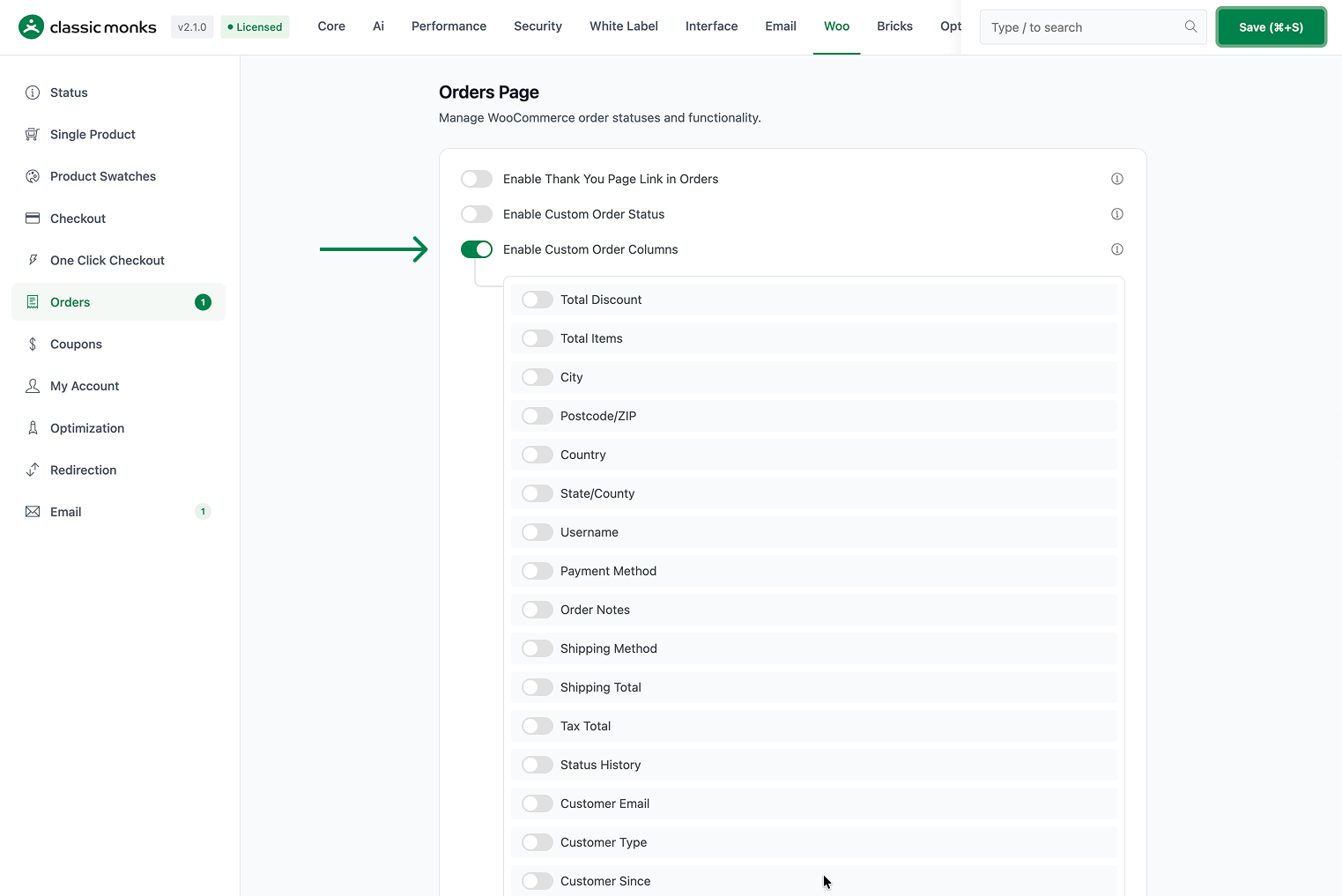
Step 2: Turn On the Columns You Want
Enable the individual toggles for the columns you need. Each column is independent, so you can show only the data that matters to your team. For example: enable Payment Method, Shipping Method, and Shipping Total for fulfillment, or Customer Email and Customer Type for support.
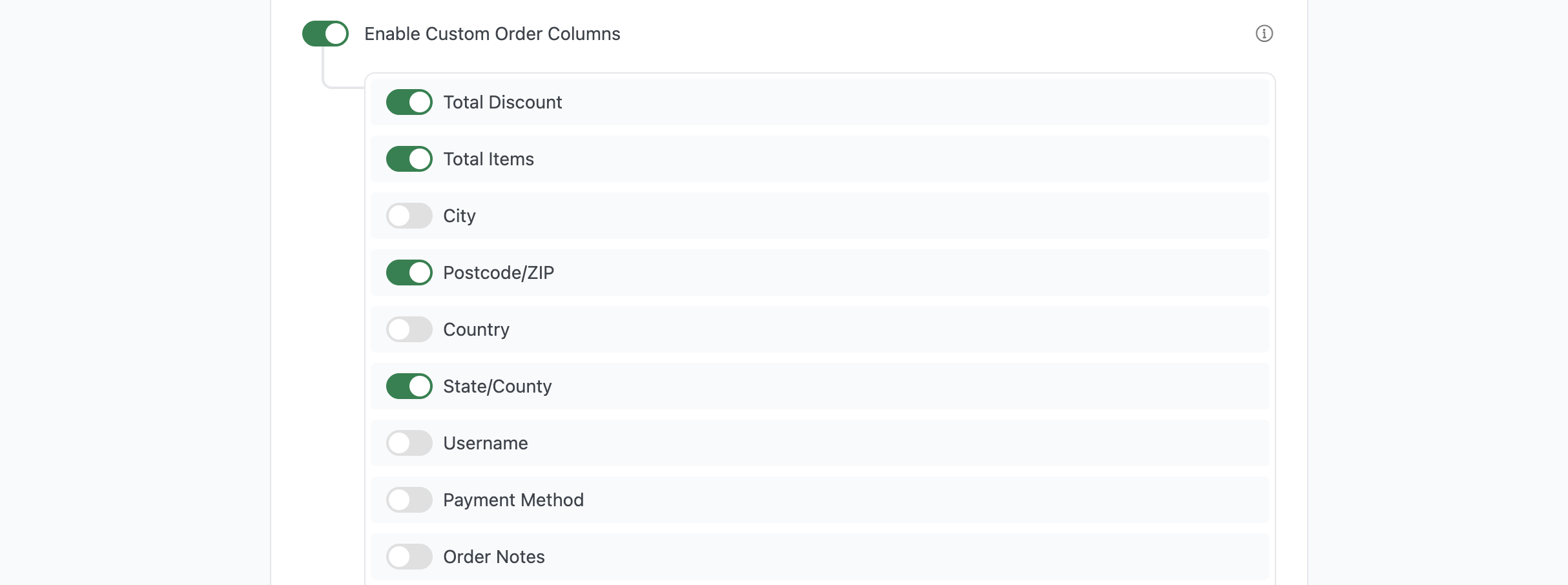
Step 3: Save and Verify
Click Save Changes, then open WooCommerce > Orders. The enabled columns appear in the orders table after the order number. Use the sortable column headers to reorder rows by values such as total discount, shipping total, or customer email.
Available Columns
Each of these is an independent toggle under Enable Custom Order Columns:
| Column | Data it shows |
|---|---|
| Discount | Total discount applied to the order. |
| Items | Total item count for the order. |
| City | Billing city. |
| Postcode | Billing postcode/ZIP. |
| Country | Billing country. |
| State | Billing state/county. |
| Username | Customer’s username, or “Guest” for guest orders. |
| Payment | Payment method title (for example, Stripe or PayPal). |
| Notes | The last three order notes, trimmed to a short preview. |
| Shipping Method | Shipping method used. |
| Shipping Total | Shipping cost shown as a price. |
| Tax Total | Total tax shown as a price. |
| Status History | The last three status changes with dates. |
| Customer’s billing email. | |
| Customer Type | Registered or Guest. |
| Customer Since | Date of the customer’s first order. |
| Categories | Product categories across the order, as links. |
| Downloads | Count of downloadable item quantities in the order. |
| Virtual | Count of virtual item quantities in the order. |
Configuration Options
| Option | Default |
|---|---|
| Enable Custom Order Columns (master) | Off |
| Discount / Items / City / Postcode / Country / State / Username / Payment / Notes / Shipping Method / Shipping Total / Tax Total / Status History / Email / Customer Type / Customer Since / Categories / Downloads / Virtual (19 individual toggles) | Off |
Each column is enabled by turning on its toggle. All 19 columns, plus the default WooCommerce columns, are registered when the feature is on; only the enabled ones are inserted into the orders table.
What Gets Affected
- The admin orders table: enabled columns appear after the order number
- Sorting: most numeric and text columns are sortable from their headers
- The orders list becomes more informative at a glance for enabled data
What Does NOT Get Affected
- The default WooCommerce columns: these stay in place
- The order detail page and order editor: custom columns are list-only
- Customer-facing pages: the feature is admin-only; order emails and the account page are unchanged
- The WooCommerce REST API: order data returned by the API is unchanged by the column toggles
Advanced Options (Developers)
The feature registers four hooks in functions/woocommerce/woo-orders.php:
add_filter( 'manage_edit-shop_order_columns', 'cm_register_custom_order_columns' );
add_action( 'manage_shop_order_posts_custom_column', 'cm_custom_order_column_content' );
add_filter( 'manage_edit-shop_order_sortable_columns', 'cm_custom_order_column_sorting' );
add_action( 'pre_get_posts', 'cm_custom_order_column_orderby' );manage_edit-shop_order_columnscallscm_register_custom_order_columns(), which inserts the enabled columns immediately after the order number.manage_shop_order_posts_custom_columncallscm_custom_order_column_content(), which populates each column from the order data.manage_edit-shop_order_sortable_columnscallscm_custom_order_column_sorting(), making the numeric and text columns sortable. Sortable columns include discount, items, city, postcode, country, state, username, payment, shipping total, tax total, email, customer type, and customer since. Notes, status history, categories, downloads, and virtual are registered for display but not made sortable.pre_get_postscallscm_custom_order_column_orderby(), which maps the sortable column to the underlying order meta (for example, shipping total sorts by_order_shipping).
The registration and sorting functions gate on the Enable Custom Order Columns toggle. If it is off, the columns are not added and sorting is unchanged.

Add your first comment to this post