




What Are First-Time Customer Coupons?
WooCommerce does not detect first-time shoppers on its own. The Classic Monks Enable First-Time Customer Coupons feature identifies new customers, generates a welcome coupon for them, and (optionally) emails it with instructions.
The feature monitors customer history and purchase behavior to decide whether someone is new, then creates a personalized coupon code with a configurable validity period. Detection works for registered users via their account and email, for guests via their email and order history, and optionally via browser cookies or IP.
Why You Need It
A first-purchase incentive is one of the highest-ROI acquisition levers:
- Convert curious visitors. A welcome discount tips a first-time shopper who is still deciding.
- Build loyalty from day one. A personal welcome email sets the tone for the relationship.
- Reduce first-order abandonment. Discounting the first purchase lowers the “sticker shock” barrier.
- Automate the sequence. Once configured, welcome coupons and emails generate without manual work.
How to Offer Rewards to New Customers in WooCommerce
Step 1: Enable the Feature
- Open Classic Monks in your WordPress admin sidebar.
- Open the WooCommerce tab.
- Open the Coupons subtab.
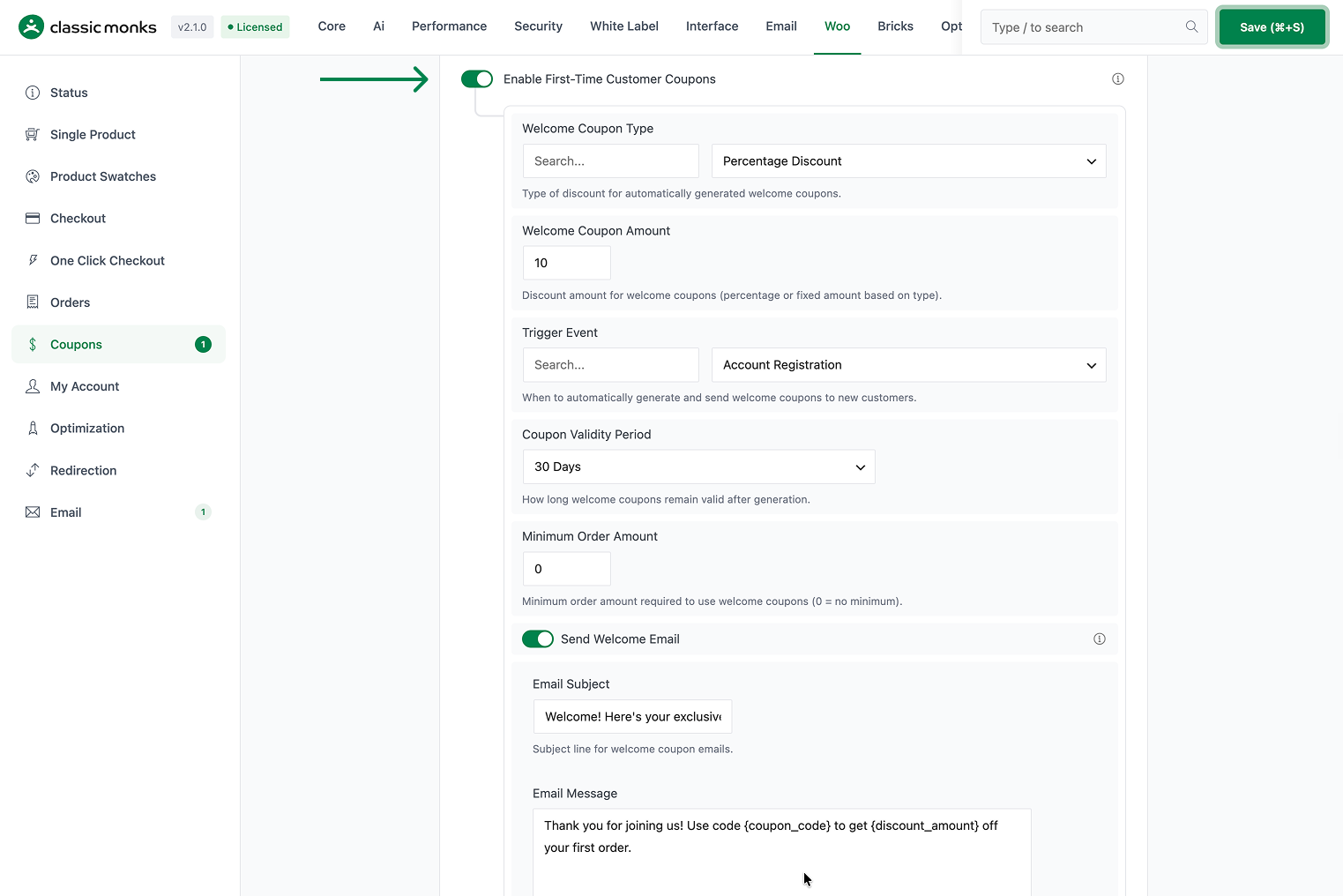
- Toggle on Enable First-Time Customer Coupons. The nested options expand below the toggle.
Step 2: Configure the Welcome Coupon
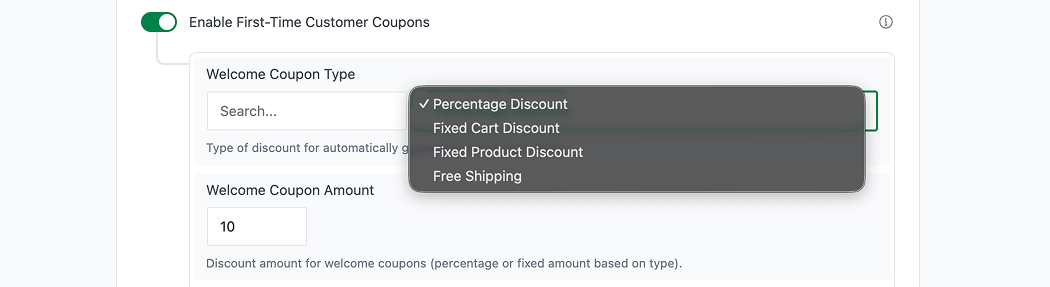
- Welcome Coupon Type selects the discount kind: Percentage Discount (default), Fixed Cart Discount, Fixed Product Discount, or Free Shipping.
- Welcome Coupon Amount (default 10) sets the discount value. For a percentage type this is a percent; for fixed types it is an amount. The field is hidden when the type is Free Shipping.
Step 3: Choose the Trigger
- Trigger Event decides when a welcome coupon is generated:
- Account Registration (default) fires when a new account is created.
- First Website Visit fires on a visitor’s first site visit.
- First Item Added to Cart fires when a first-time shopper adds their first item.
- Email Newsletter Signup fires on a newsletter signup.

Step 4: Set Validity and Minimum
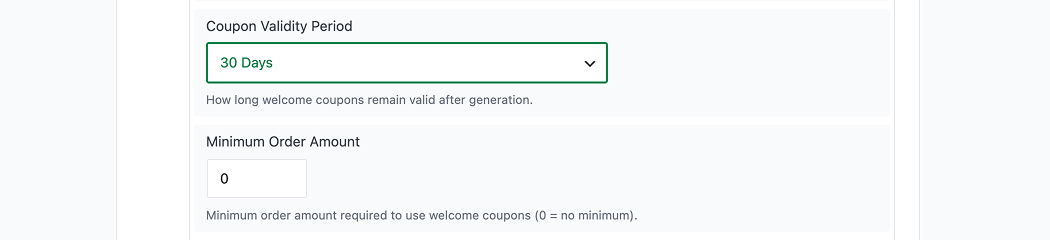
- Coupon Validity Period controls how long the coupon stays valid after generation: 7, 14, 30 (default), 60, or 90 days, or No Expiration.
- Minimum Order Amount sets a spend threshold to use the coupon (default 0, which means no minimum).
Step 5: Configure the Welcome Email
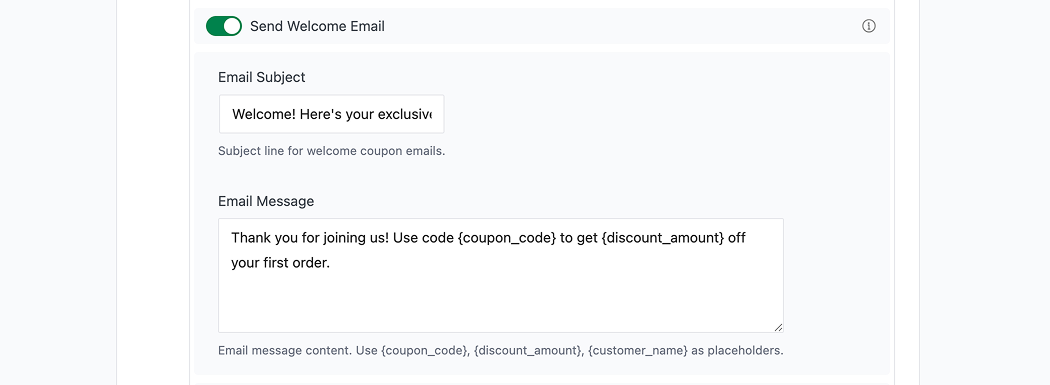
- Send Welcome Email (On by default) emails the coupon to the new customer.
- Email Subject (default
Welcome! Here's your exclusive discount) sets the subject line. - Email Message (default
Thank you for joining us! Use code {coupon_code} to get {discount_amount} off your first order.) sets the body. Use the placeholders{coupon_code},{discount_amount}, and{customer_name}.
Step 6: Configure Code and Exclusion Options
- Generate Unique Coupon Codes (On by default) creates a separate code for each customer to prevent sharing and track usage.
- Exclude Sale Items (Off by default) prevents the welcome coupon from applying to products already on sale.

Step 7: Save Changes and Test
Click Save Changes in the Classic Monks settings. Register a new account, confirm a unique welcome coupon is generated, and verify the welcome email arrives with the code.
Configuration Options
| Option | Behavior | Default |
|---|---|---|
| Enable First-Time Customer Coupons | Master toggle for the feature. | Off |
| Welcome Coupon Type | Percentage, Fixed Cart, Fixed Product, or Free Shipping. | Percentage Discount |
| Welcome Coupon Amount | Discount value (percent or fixed depending on type); hidden for Free Shipping. | 10 |
| Trigger Event | Account Registration, First Website Visit, First Item Added to Cart, or Email Newsletter Signup. | Account Registration |
| Coupon Validity Period | 7, 14, 30, 60, 90 days, or No Expiration. | 30 days |
| Minimum Order Amount | Minimum spend to use the coupon (0 = none). | 0 |
| Send Welcome Email | Email the coupon to the customer. | On |
| Generate Unique Coupon Codes | One unique code per customer. | On |
| Exclude Sale Items | Prevent use on items already on sale. | Off |
Per-coupon, Email Subject and Email Message are set below Send Welcome Email when it is on.
What Gets Affected
- New-customer detection: the feature watches registration, visits, cart additions, and signups per the trigger
- Coupon generation: a welcome coupon is created for identified first-time customers, with a unique code if enabled
- Email delivery: a welcome email with the code is sent when Send Welcome Email is on
- Coupon usage: the generated code counts against its usage limit and the customer’s order
What Does NOT Get Affected
- Existing customers: returning shoppers are not given the first-time coupon
- Manually created coupons: the welcome sequence runs independently of your normal coupon library
- Products and pricing: the coupon only adds a discount when applied at checkout
- Sale items: only excluded if Exclude Sale Items is on
Advanced Options (Developers)
The feature registers its hooks in functions/woocommerce/coupons/first-time-customer-coupons.php:
// Depending on the trigger event:
add_action( 'woocommerce_created_customer', 'cm_handle_customer_registration', 10, 3 );
add_action( 'user_register', 'cm_handle_user_registration' );
add_action( 'init', 'cm_handle_first_visit' );
add_action( 'woocommerce_add_to_cart', 'cm_handle_first_cart_addition', 10, 6 );
add_action( 'mailchimp_signup', 'cm_handle_email_signup' );
add_action( 'newsletter_signup', 'cm_handle_email_signup' );

add_action( 'admin_menu', 'cm_add_first_time_customer_admin_menu' );
add_action( 'wp_ajax_cm_generate_welcome_coupon', 'cm_ajax_generate_welcome_coupon' );
add_action( 'wp_ajax_cm_get_customer_history', 'cm_ajax_get_customer_history' );- Which registration/visit/cart/signup hooks are registered depends on the configured Trigger Event.
woocommerce_created_customeranduser_registerfire on account registration (10, 3 args).inittracks the first visit;woocommerce_add_to_carttracks first cart addition.mailchimp_signupandnewsletter_signupsupport the email-signup trigger.- Admin AJAX endpoints handle manual welcome-coupon generation and customer history lookup.
- Expired welcome coupons are cleaned up via the scheduled
cm_cleanup_expired_welcome_couponshook.
Common Use Cases
First-order welcome offer. Select Account Registration as the trigger and a Percentage Discount (for example, 10% or 15%) so every new account gets a first-purchase incentive and email.
Email capture growth. Use Email Newsletter Signup as the trigger with a fixed cart discount, turning subscribers into first-time buyers and growing your list at the same time.
Cart-saving nudges. Set First Item Added to Cart as the trigger with a short validity (for example, 17 days) so the offer feels timely and encourages checkout while the interest is fresh.
Free-shipping welcome. Choose Free Shipping as the welcome coupon type with a Minimum Order Amount (for example, $50) to encourage a first order large enough to be worth the shipping cost.
Stacked margin protection. Keep Exclude Sale Items on so the welcome discount does not compound with existing sale prices, protecting margin on promotional inventory.

Add your first comment to this post