




What Is a Single Coupon Restriction?
WooCommerce lets customers apply multiple coupons to one cart, which can stack into an unexpectedly deep discount. The Classic Monks Enable Single Coupon Restriction feature enforces a one-coupon-per-cart rule. When a customer applies more than one coupon, the extra ones are removed automatically according to your priority setting, and a notice tells them what happened.
The restriction monitors both the cart and checkout pages. It works with every coupon type (percentage, fixed, free shipping) and with WooCommerce cart fragments and AJAX updates.
Why You Need It
Coupon stacking usually hurts more than it helps:
- Margin protection. “20% off” plus “10% off” plus free shipping can erase margin on a single order.
- Abuse prevention. Stacking codes shared on social media or coupon sites produce excessive discounts.
- Customer clarity. One applied discount is easier to understand than several stacked lines.
- Consistent pricing. A single memorable discount simplifies expectations across every order.
How to Restrict WooCommerce Coupons to One at a Time
Step 1: Enable the Feature
- Open Classic Monks in your WordPress admin sidebar.
- Open the WooCommerce tab.
- Open the Coupons subtab.
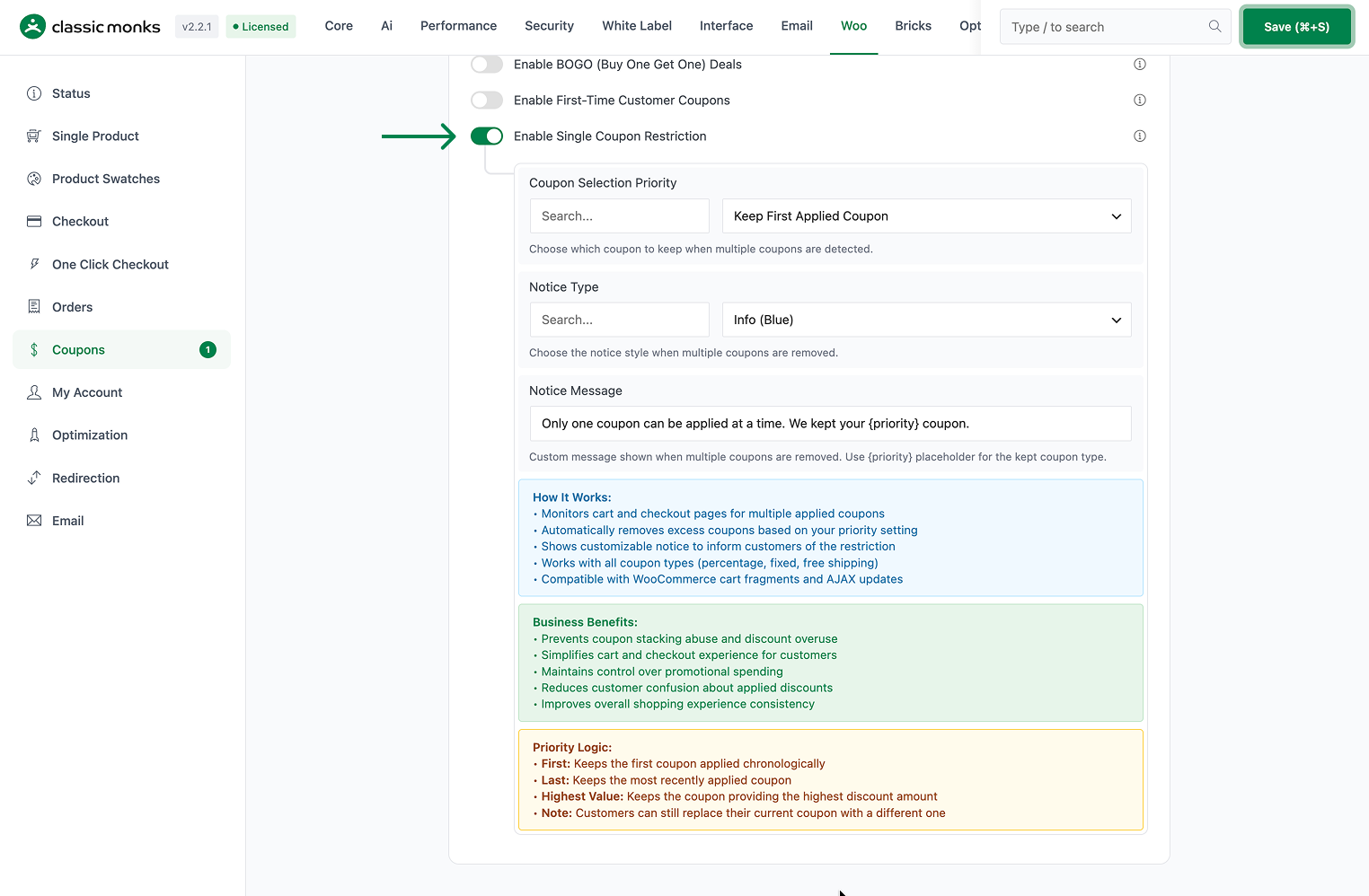
- Toggle on Enable Single Coupon Restriction. The nested options expand below the toggle.
Step 2: Choose Which Coupon to Keep
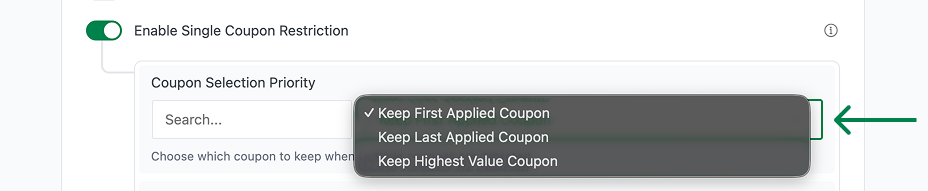
- Coupon Selection Priority decides which coupon survives when multiple are applied:
- Keep First Applied Coupon (default) keeps the first coupon chronologically.
- Keep Last Applied Coupon keeps the most recent one.
- Keep Highest Value Coupon keeps the coupon with the largest discount.
Step 3: Configure the Notice
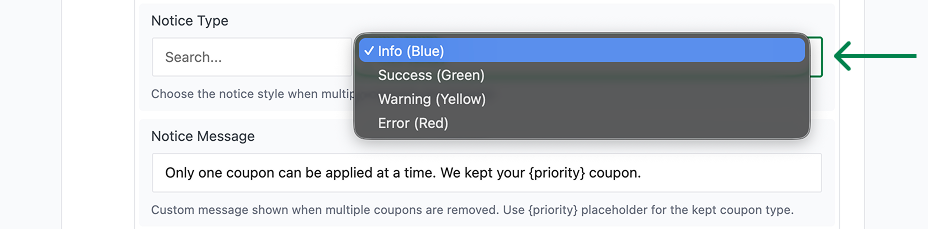
- Notice Type sets the style of the message shown when excess coupons are removed: Info (Blue), Success (Green), Warning (Yellow), or Error (Red) (default Info/Blue).
- Notice Message sets the text customers see. The default is
Only one coupon can be applied at a time. We kept your {priority} coupon.Use the{priority}placeholder to name which coupon was kept.
Step 4: Save Changes and Test
Click Save Changes in the Classic Monks settings. Apply a coupon to the cart, then apply a second one; confirm the extra coupon is removed and the notice appears with your configured style and message.
Configuration Options
| Option | Behavior | Default |
|---|---|---|
| Enable Single Coupon Restriction | Master toggle for the feature. | Off |
| Coupon Selection Priority | Which coupon to keep: First Applied, Last Applied, or Highest Value. | Keep First Applied Coupon |
| Notice Type | Style of the notice: Info (Blue), Success (Green), Warning (Yellow), or Error (Red). | Info (Blue) |
| Notice Message | Text shown when excess coupons are removed; supports the {priority} placeholder. |
Only one coupon can be applied at a time. We kept your {priority} coupon. |
What Gets Affected
- The cart and checkout: only one coupon is allowed at a time
- Coupon application: applying a new coupon removes the excess one per the priority setting
- Customer messaging: a configurable notice explains which coupon was kept
- Order total: reflects the single surviving coupon
What Does NOT Get Affected
- The coupons themselves: each code and its settings are unchanged
- Coupon eligibility rules: the surviving coupon still honors its own restrictions
- Manual code entry: customers can still apply one coupon, and can replace it with a different one
- Coupon usage tracking: each coupon still counts toward its usage limit when applied
Advanced Options (Developers)
The feature registers its hooks in functions/woocommerce/coupons/single-coupon-restriction.php:
add_action( 'init', 'cm_initialize_single_coupon_restriction' );
add_action( 'woocommerce_before_cart', 'cm_restrict_to_single_coupon', 10 );
add_action( 'woocommerce_before_checkout_form', 'cm_restrict_to_single_coupon', 10 );
add_action( 'woocommerce_applied_coupon', 'cm_handle_coupon_applied', 10, 2 );
add_action( 'woocommerce_cart_updated', 'cm_restrict_to_single_coupon', 20 );woocommerce_before_cartandwoocommerce_before_checkout_formruncm_restrict_to_single_coupon()to enforce the rule on the cart and checkout pages.woocommerce_applied_coupontriggerscm_handle_coupon_applied()when a coupon is applied, so an excess one is handled immediately.woocommerce_cart_updated(priority 20, intentionally lower to avoid conflicts) re-enforces the rule after cart updates.initinitializes the feature withcm_initialize_single_coupon_restriction().
Common Use Cases
Straightforward stores. Keep Keep First Applied Coupon so the first code a customer enters stands, preventing accidental stack lines and keeping the checkout simple.
Same-order turnover (repair with a better code). Use Keep Last Applied Coupon. If a customer applies the 10% code then finds a 20% one, the better code replaces the first with a clear notice.
Best-deal enforcement. Use Keep Highest Value Coupon so the system always retains the strongest discount applied, which pairs well with auto-apply and URL coupon promotions.
Free-shipping-only carts. Run free-shipping promotions strictly by forcing a single coupon, so a customer cannot stack a free-shipping code with a percentage one and collapse the margin.
Wholesale and margin-critical orders. On high-value B2B carts, a single-coupon cap prevents a combination of shared codes from producing an excessive discount, protecting thin wholesale margins.

Add your first comment to this post