




What Is a WooCommerce URL Coupon?
WooCommerce normally requires a customer to enter a coupon code at cart or checkout. A URL coupon moves that code into the URL itself. When a customer visits a link like yoursite.com/shop/?coupon=SAVE20, the coupon is applied to their cart automatically, no typing required.
The Classic Monks Enable URL Coupons feature lets you control the URL parameter name, decide where visitors land after the coupon is applied, and attach source and UTM tracking to every shareable link.
Why You Need It
URL coupons turn any marketing asset into a one-click discount:
- Email campaigns. Drop a
?coupon=link behind the “Shop the offer” button so subscribers get the discount immediately. - Affiliate and influencer links. Hand partners a link that auto-applies their code, and track the source of every click.
- Social media. Share a discount link on social that applies the coupon on arrival.
- QR codes and print. A printed QR code can lead straight to a coupon-applied page.
- Campaign attribution. Because UTM parameters can be preserved, you can tell exactly which campaign drove the redeemed coupon.
How to Apply WooCommerce Coupons from a URL in WordPress
Step 1: Enable the Feature
- Open Classic Monks in your WordPress admin sidebar.
- Open the WooCommerce tab.
- Open the Coupons subtab.
- Toggle on Enable URL Coupons. The nested options expand below the toggle.
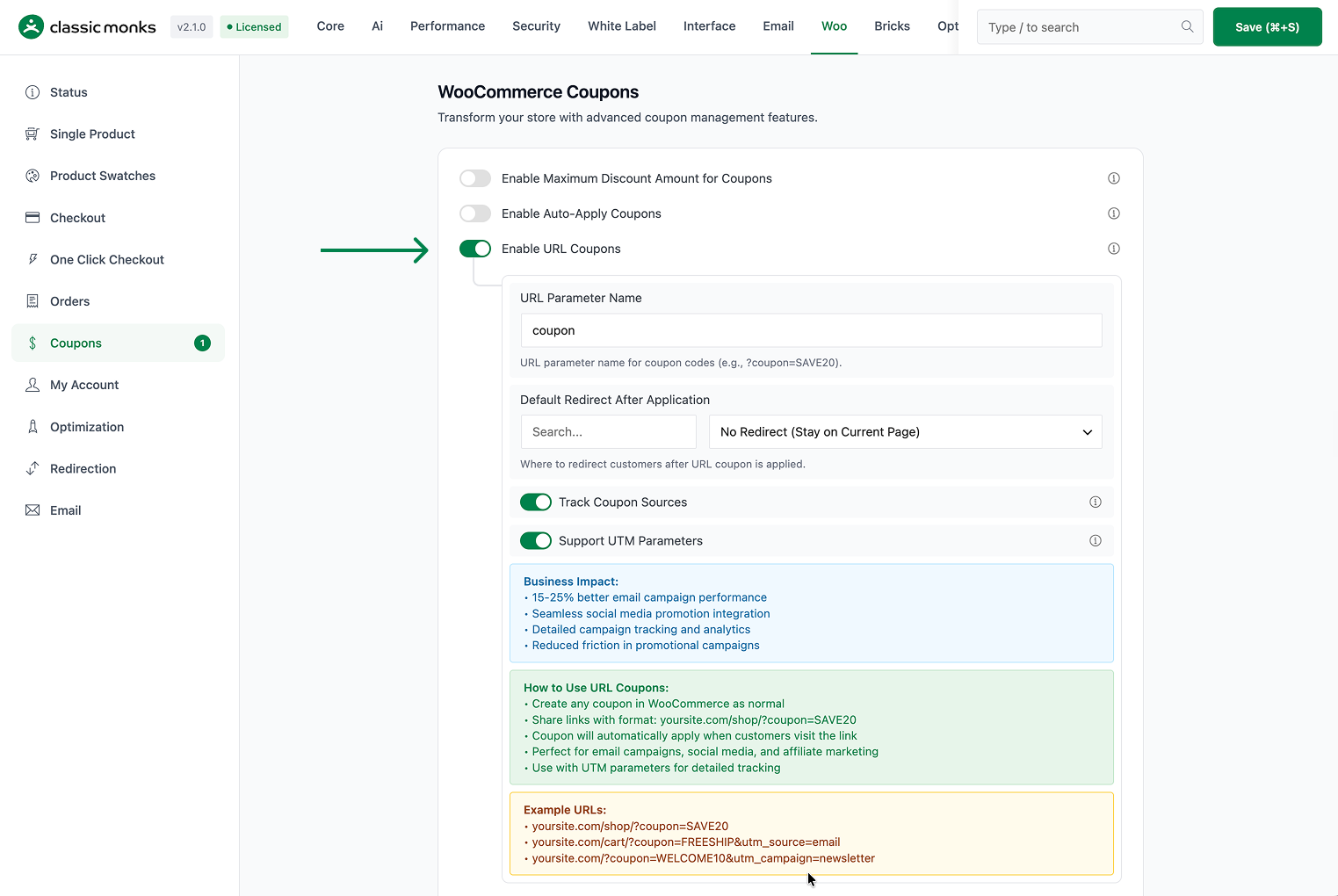
Step 2: Configure the Parameter Name
- URL Parameter Name (default
coupon) is the query parameter that carries the code, for example?coupon=SAVE20. Leave it ascoupon, or change it if you need a different parameter elsewhere.

Step 3: Choose the Redirect
- Default Redirect After Application controls where a customer lands after the coupon is applied:
- No Redirect (Stay on Current Page) keeps them where they clicked.
- Cart Page sends them to the cart to review the applied discount.
- Checkout Page moves them straight to checkout.
- Shop Page returns them to the catalog.

Step 4: Configure Tracking
- Track Coupon Sources (On by default) logs the source of URL coupon applications for analytics.
- Support UTM Parameters (On by default) preserves UTM parameters through the redirect so campaign tracking stays intact.
- Turn both off only if you do not want application logs or UTM preservation.

Step 5: Create a Coupon and Share a Link
Create or use any WooCommerce coupon (for example SAVE20), then share the link:
yoursite.com/shop/?coupon=SAVE20
yoursite.com/cart/?coupon=FREESHIP&utm_source=email
yoursite.com/checkout/?coupon=WELCOME10&utm_campaign=newsletter
Step 6: Save Changes and Test
Click Save Changes in the Classic Monks settings. Open a coupon link in a private browser window and confirm the coupon applies automatically and (if set) you are redirected to the configured page.
Configuration Options
| Option | Behavior | Default |
|---|---|---|
| Enable URL Coupons | Master toggle for the feature. | Off |
| URL Parameter Name | Query parameter that carries the coupon code. | coupon |
| Default Redirect After Application | Where to send the visitor after the coupon applies: No Redirect, Cart Page, Checkout Page, or Shop Page. | No Redirect |
| Track Coupon Sources | Log the source of URL coupon applications. | On |
| Support UTM Parameters | Preserve UTM parameters through the redirect. | On |
What Gets Affected
- The cart: a coupon arrives and is applied automatically when a URL coupon link is visited
- Redirect behavior: the visitor is sent to the configured page after application (when a redirect is set)
- Analytics: source data is recorded when Track Coupon Sources is on
- Campaign tracking: UTM parameters survive the redirect when Support UTM Parameters is on
What Does NOT Get Affected
- Manual coupon entry: typing a code at checkout still works
- Coupon eligibility rules: URL application obeys the coupon’s existing usage restrictions
- The coupon’s effect: a URL-applied discount is identical to a manually entered one
- Product and catalog data: URL coupons only apply a discount; they do not change prices or stock
Advanced Options (Developers)
The feature registers its hooks in functions/woocommerce/coupons/url-coupons.php:
add_action( 'init', 'cm_initialize_url_coupons' );
add_action( 'template_redirect', 'cm_process_url_coupon', 20 );
add_action( 'wp_enqueue_scripts', 'cm_url_coupons_enqueue_scripts' );
add_action( 'add_meta_boxes', 'cm_add_url_coupon_meta_box' );

add_action( 'wp_ajax_cm_track_url_coupon_click', 'cm_track_url_coupon_click_ajax' );
add_action( 'wp_ajax_nopriv_cm_track_url_coupon_click', 'cm_track_url_coupon_click_ajax' );template_redirect(priority 20) runscm_process_url_coupon(), which reads the coupon parameter, applies the coupon, and performs the configured redirect.wp_ajax_/wp_ajax_nopriv_oncm_track_url_coupon_clickrecord source clicks for analytics, for both guests and logged-in users.initinitializes the feature;wp_enqueue_scriptsloads frontend assets;add_meta_boxesregisters the URL coupon meta box.
Common Use Cases
Email campaign discounts. Put ?coupon=SAVE20 on your newsletter’s call-to-action links. Subscribers get the discount without searching for a code, and you can read the campaign source in analytics.
Affiliate and influencer tracking. Hand each partner a coupon link with a source tag. Track Coupon Sources tells you which partner’s links produced redemptions, so you can measure affiliate performance.
Social launches. Share a ?coupon= link on Instagram, X, or Facebook. With Support UTM Parameters on, append utm_source, utm_medium, and utm_campaign to attribute channel performance.
Print and QR promotions. Put a coupon-applying QR code on packaging, flyers, or in-store signage. Scanning it applies the discount and opens the cart or checkout so the shopper can complete the purchase on their phone.
Checkout conversion. Use the Checkout redirect on high-intent links so customers skip the cart and move straight to paying, with their discount already applied.

Add your first comment to this post