




What Are Product Swatches?
Product Swatches is a Classic Monks WooCommerce feature that enhances how variable products display their attributes. Normally a variable product shows a dropdown such as “Size: Small / Medium / Large” or “Color: Blue / Red / Green.” With swatches enabled, each attribute value renders as a clickable visual element:
- Color swatches display as a solid color chip (optionally with a second color for gradients)
- Image swatches display a representative thumbnail you upload per term
- Label swatches display as styled text (square, rounded, or pill)
The feature reads the attribute’s native type plus per-term values you set in WooCommerce, then renders the swatch UI on the front end. It includes a full set of display options: layout direction, swatch size, style per swatch type, border color and width, hover tooltips, archive-page display, and out-of-stock handling.
Why You Need It
Text dropdowns are functional but add friction:
- Customers cannot judge a color from the word “Blue” or “Red”
- Selecting a variation requires an extra dropdown interaction
- Visual swatches reduce purchase hesitation for fashion, beauty, and color-driven products
- They look native and polished on modern storefronts
For visual products (clothing, furniture, paint, cosmetics) swatches measurably improve the shopping experience. For service or digital products they add no value, so the feature is opt-in and off by default.
How to Use Product Swatches in WordPress
Step 1: Set Up Your WooCommerce Attributes and Terms
Swatches only appear for attributes that have been configured. Before you enable the feature, make sure your variable products use product attributes with assigned terms.
- Go to Products > Attributes in your WordPress dashboard.
- Open an attribute (for example, “Color”) and check its Type field.
Select,Text,Color, orImagetypes are recognized;Textattributes render as label swatches. - Edit the attribute’s terms (for example, the actual colors) under the Terms list. The Classic Monks term metabox lets you assign a
cm_term_color, a secondary color for dual-color swatches, an uploaded image (cm_term_image), or a custom label per term.
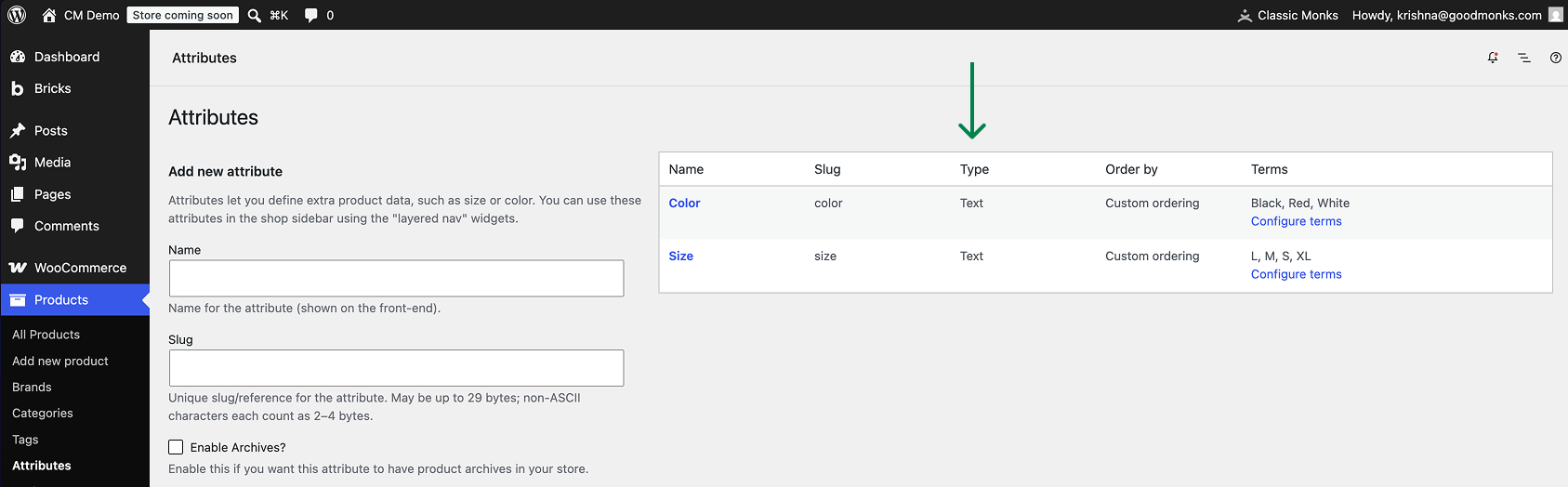
These per-term values are what the storefront renders. An attribute with no terms or no per-term values will not produce a useful swatch.
Step 2: Navigate to Product Swatches Settings
- Open Classic Monks in your WordPress admin sidebar.
- Open the WooCommerce tab.
- Open the Product Swatches subtab.
Step 3: Enable the Feature
Toggle on Enable Product Swatches. The nested display options expand below the toggle.
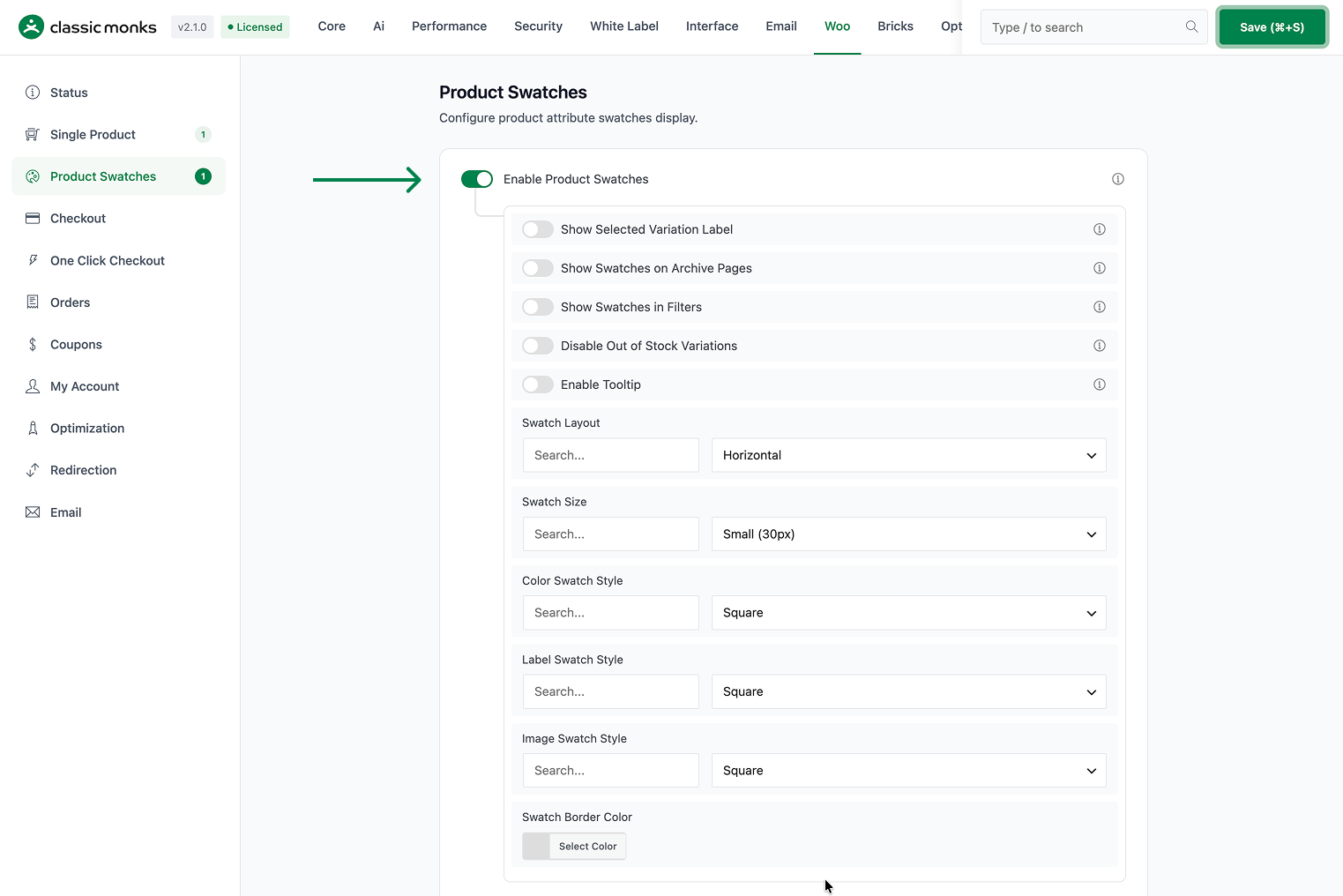
Step 4: Configure the Display Options
The nested options control layout, size, styling, tooltips, and where swatches appear. Refer to the Configuration Options table below for each behavior and default.
Step 5: Save Changes
Click Save Changes in the Classic Monks settings toolbar.
Step 6: Verify
Visit a variable product on the storefront. The attribute dropdowns should render as swatches, and hovering a swatch should show a tooltip (when enabled). If the attribute is also shown on archive pages, check a shop or category page.
Configuration Options
| Option | Behavior | Default |
|---|---|---|
| Enable Product Swatches | Master toggle for the whole feature. | Off |
| Show Selected Variation Label | Displays the chosen variation attributes as text below the swatches. | On |
| Label Separator | Separator used between the selected variation labels. | : |
| Show Swatches on Archive Pages | Renders swatches on shop and category pages for quick selection. | On |
| Show Swatches in Filters | Replaces text-based WooCommerce layered navigation filters with swatches. | Off |
| Disable Out of Stock Variations | Visually disables or hides out-of-stock swatches. | On |
| Disabled Swatch Behavior | How an out-of-stock swatch appears: Blur with Cross, Blur without Cross, or Hide. | Blur with Cross |
| Enable Tooltip | Shows attribute names and values when hovering a swatch. | Off |
| Enable Custom Tooltip | Uses custom-styled tooltips instead of browser defaults. | Off |
| Tooltip Position | Tooltip placement: Top or Bottom. | Top |
| Tooltip Background | Background color/opacity of the tooltip. | rgba(0,0,0,0.8) |
| Tooltip Text Color | Text color of the tooltip. | #ffffff |
| Swatch Layout | Direction of the swatch row: Horizontal or Vertical. | Horizontal |
| Swatch Size | Small (30px), Medium (40px), Large (50px), or Custom Size. | Small (30px) |
| Custom Width (px) | Custom swatch width, shown when Swatch Size is Custom. Range 20-100. | 30 |
| Custom Height (px) | Custom swatch height, shown when Swatch Size is Custom. Range 20-100. | 30 |
| Color Swatch Style | Shape of color swatches: Square, Circle, Rounded, or Custom Border Width. | Square |
| Label Swatch Style | Shape of label swatches: Square, Rounded, Pill, or Custom Border Width. | Square |
| Image Swatch Style | Shape of image swatches: Square, Circle, Rounded, or Custom Border Width. | Square |
| Swatch Border Color | Border color of all swatches. | #ddd |
| Swatch Border Width (px) | Border thickness, shown when any style set is Custom Border Width. Range 0-10. | 2 |
What Gets Affected
- Variable product pages: attribute dropdowns are replaced with swatches
- Archive pages (with the option enabled): swatches appear on shop and category pages
- Layered navigation widgets (with the option enabled): text filter links become swatch filters
- The variation selection and AJAX add-to-cart flow continues to work the same way, just with a visual control
What Does NOT Get Affected
- Simple and external/affiliate products: no swatches (the feature applies only to variable products)
- Cart and checkout pages: unchanged
- Admin order details: still show variation text (for example, “Color: Blue”), not swatches
Advanced Options (Developers)
The main integration is a filter on WooCommerce’s variation dropdown output. In functions/woocommerce/product-swatches/product-swatches.php:
add_filter( 'woocommerce_dropdown_variation_attribute_options_html', array( $this, 'replace_dropdown_with_swatches' ), 10, 2 );
add_action( 'wp_head', array( $this, 'add_vertical_layout_style' ) );- Filter
woocommerce_dropdown_variation_attribute_options_html(priority 10, 2 args) replaces the dropdown with swatches when the feature is enabled. - Action
wp_headinjects the vertical layout CSS, but only whenswatch_layoutisverticaland the current page is a product.
Asset loading (admin and frontend) is handled by the CM_Product_Swatches_Assets class, which hooks admin_enqueue_scripts and wp_enqueue_scripts. On WooCommerce attribute screens, CM_Product_Swatches_Attribute_Admin hooks woocommerce_after_add_attribute_fields, woocommerce_after_edit_attribute_fields, woocommerce_product_option_terms, woocommerce_attribute_added, and updated/deleted to persist the attribute swatch type and defaults, and adds the product_attributes_type_selector filter to register the custom types. Term meta (color, dual color, image, label, tooltip) is saved through created_term and edit_term on CM_Product_Swatches_Term_Meta.
Disabling Enable Product Swatches stops the replace_dropdown_with_swatches output and the wp_head style injection, so dropdowns render as normal.
Common Use Cases
Fashion and apparel stores. Map a “Color” attribute to color swatches and a “Size” attribute to label swatches or a dropdown. Customers see the actual shade instead of reading “Navy,” which reduces hesitation on color-driven purchases.
Furniture and home decor. Use image swatches for fabric or finish options. Upload a small thumbnail per material so shoppers can visually scan the available finishes without opening each product.
Quick archive-page browsing. Enable Show Swatches on Archive Pages so customers choose a variation directly from the shop or category grid, cutting out an extra product-page visit for stores where color or size is the deciding factor.
Multi-attribute products. Enable Show Selected Variation Label so the chosen combination (for example, “Red : Large”) appears below the swatches, keeping clarity when a product has two or more swatch attributes at once.
Sell-through and low-stock control. Keep Disable Out of Stock Variations on with Blur with Cross so unavailable options are clearly not selectable, while still hinting they exist for restock interest.

Add your first comment to this post