




What Does the Feature Do?
WooCommerce shows various notices in the admin, including helper messages and general admin prompts. The Remove All WooCommerce Notices feature suppresses those notices, so the admin no longer displays WooCommerce’s notice prompts.
The store, products, orders, and settings are unaffected. Only the notice prompts are hidden.
Why You Need It
Admin notices are often unnecessary for an established store:
- They add repetitive prompts to every admin view
- A configured store does not need ongoing WooCommerce notifications
- Removing them keeps the dashboard focused on work
- The admin remains manageable for staff
How to Remove All WooCommerce Notices
Step 1: Enable the Feature
- In WordPress admin, open Classic Monks > WooCommerce.
- Open the Optimization settings area.
- Toggle on Remove All WooCommerce Notices.
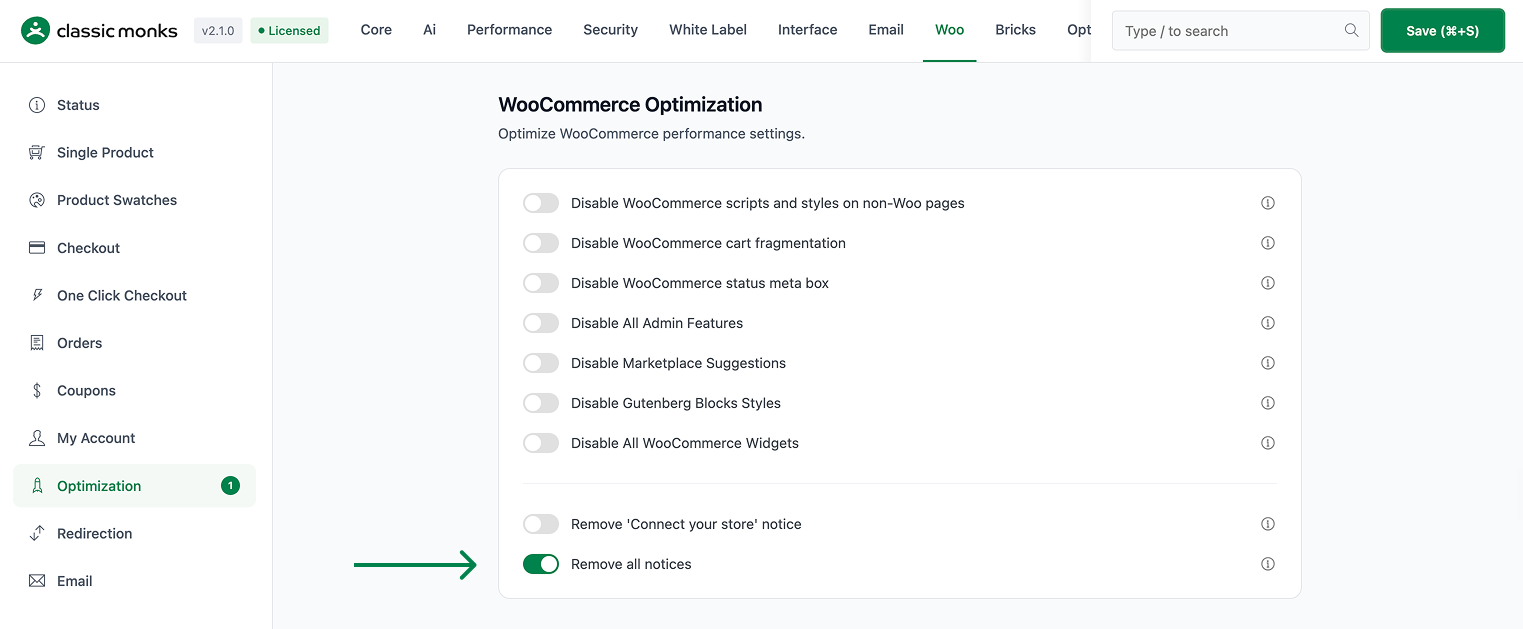
Step 2: Save and Test
Click Save Changes. Reload the WooCommerce admin and confirm the WooCommerce admin notices no longer appear.
Configuration Options
| Option | Default |
|---|---|
| Remove All WooCommerce Notices | Off |
There are no nested options. The feature is a single on/off control.
What Gets Affected
- The admin: WooCommerce helper and admin notices are suppressed
- The notice area: WooCommerce’s prompts are hidden
What Does NOT Get Affected
- Products, orders, customers, and settings: fully functional
- The shop and checkout: unchanged
- Notices from themes and other plugins: these are separate
Advanced Options (Developers)
The feature registers its logic in functions/woocommerce/woocommerce-functions.php:
add_filter( 'woocommerce_helper_suppress_admin_notices', '__return_true' );
add_filter( 'woocommerce_show_admin_notice', '__return_false' );
woocommerce_helper_suppress_admin_notices returns true and woocommerce_show_admin_notice returns false when the feature is enabled, suppressing WooCommerce’s admin notice prompts.
Common Use Cases
Established stores. A configured store does not need ongoing WooCommerce admin prompts.
Clean dashboards. Removing notice noise keeps the admin focused on orders and products.
Managed sites. Agencies that maintain many stores prefer a quiet admin.
Keeping It Set Up
Set the toggle once and it stays active across the site. To change behavior, return to the WooCommerce settings, adjust the option, and save again. The store continues to run normally throughout, and you can turn the feature off at any time to restore the previous default behavior. For teams managing multiple environments, confirm the setting on staging first, then apply it to production and verify a real page load before treating it as live.
What Still Appears
Although WooCommerce’s own admin notices are suppressed, other plugins and the theme can still show their own messages. The feature targets the WooCommerce notice system specifically, not every notice on the dashboard. If a prompt you rely on comes from another plugin, that plugin still controls it. For most established stores, hiding the WooCommerce prompts removes the repetitive reminders while keeping the admin manageable across the rest of the plugin set.

Add your first comment to this post