




What Does the Feature Do?
The WooCommerce admin orders table starts with an order number column. The Remove Order Number Column feature hides it, giving the remaining columns more horizontal room.
Removing the column does not remove the order number itself. The number still appears in the order details page and is often shown within the customer column.
Why You Need It
The order number column uses valuable space:
- When several columns are enabled, the order number pushes them off-screen
- The number is still available in the order details and URL
- Removing it lets status, date, total, and customer data dominate the row
- It pairs with the custom order columns feature for a dense but readable table
How to Remove the Order Number Column from the WooCommerce Admin
Step 1: Enable the Feature
- In WordPress admin, open Classic Monks > WooCommerce.
- Open the My Account settings area.
- Toggle on Remove Order Number Column from Admin Orders Page.
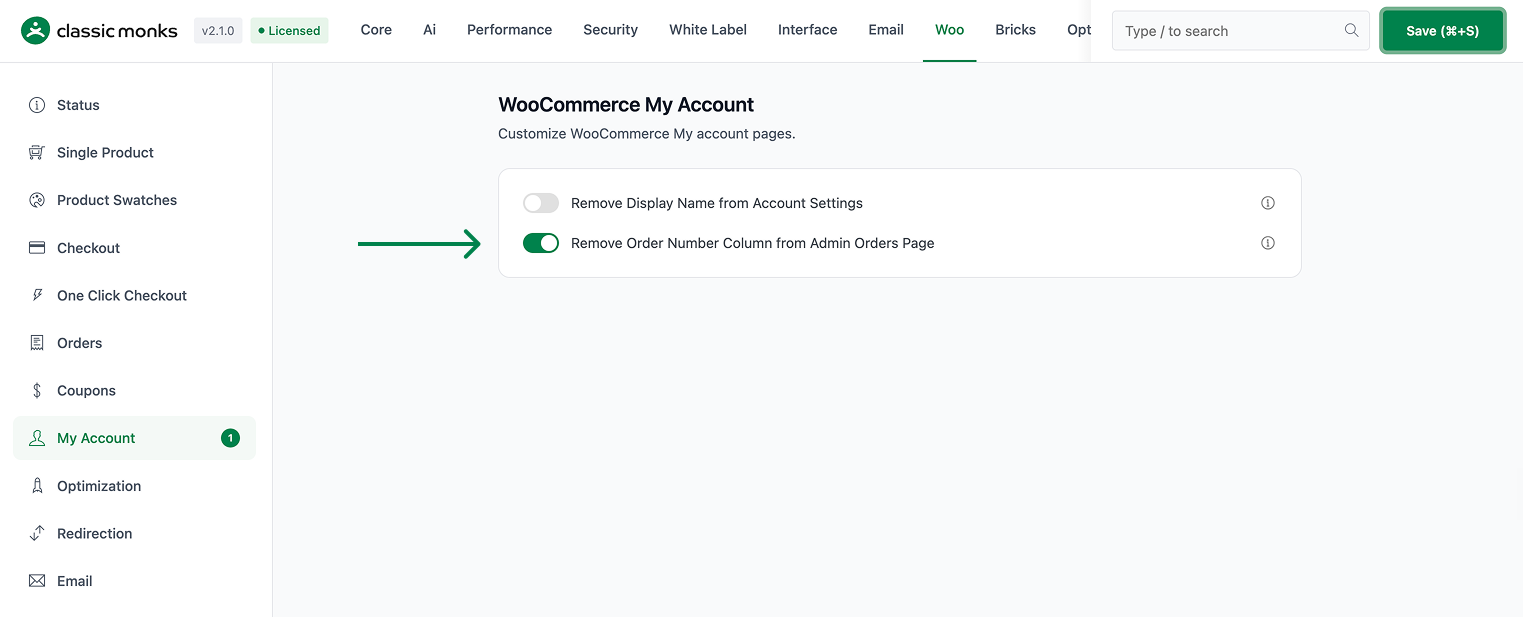
Step 2: Save and Test
Click Save Changes. Open WooCommerce > Orders and confirm the order number column no longer appears, while the other columns fill the freed space.
Configuration Options
| Option | Default |
|---|---|
| Remove Order Number Column from Admin Orders Page | Off |
There are no nested options. The feature is a single on/off control.
What Gets Affected
- The admin orders list: the order number column is hidden
- The available horizontal space: other columns use the freed room
What Does NOT Get Affected
- The order number itself: still generated and stored
- The order details page: still shows the order number
- Order emails and the customer account: the number still appears
- The customer column: may still include the order number as it always has
Advanced Options (Developers)
The feature registers one hook in functions/woocommerce/woocommerce-functions.php:
add_filter( 'manage_edit-shop_order_columns', 'cm_remove_order_number_column' );manage_edit-shop_order_columns calls cm_remove_order_number_column(), which unsets the order_number key so that column is not rendered in the admin orders list.
Common Use Cases
Dense order tables. Stores that enable many order columns remove the number column so the rest fit on screen.
Clean scanning. Some teams prefer status, date, and customer over a redundant number column.
Paired with custom columns. This feature complements the custom order columns feature by freeing space for the added columns.
Working With the Remaining Columns
Once the order number column is gone, the orders table shows the other built-in columns using the freed space. Teams that enable additional order columns from the classic order columns feature can fit more data on screen without the row stretching. The customer column typically still carries the order number or order details link, so staff keep a way to reach a specific order even with the number column hidden. For stores that scan orders by status, date, or total, removing the number column makes those columns the primary anchor points.

Add your first comment to this post