




What Does the Feature Do?
WooCommerce shows a “Connect your store” notice in the admin that prompts you to connect to WooCommerce.com. The Remove Connect Your Store Notice feature suppresses that notice, so it no longer appears in your admin screens.
The marketplace connection itself is unchanged and still available. The feature only hides the persistent prompt.
Why You Need It
The connect notice is admin clutter for stores that do not use it:
- Stores without a WooCommerce.com account see a prompt they cannot use
- The persistent notice adds noise to every admin screen
- Removing it keeps the dashboard focused on the shop
- Reconnecting remains possible whenever you want
How to Remove the Connect Your Store Notice
Step 1: Enable the Feature
- In WordPress admin, open Classic Monks > WooCommerce.
- Open the Optimization settings area.
- Toggle on Remove ‘Connect your store’ Notice.
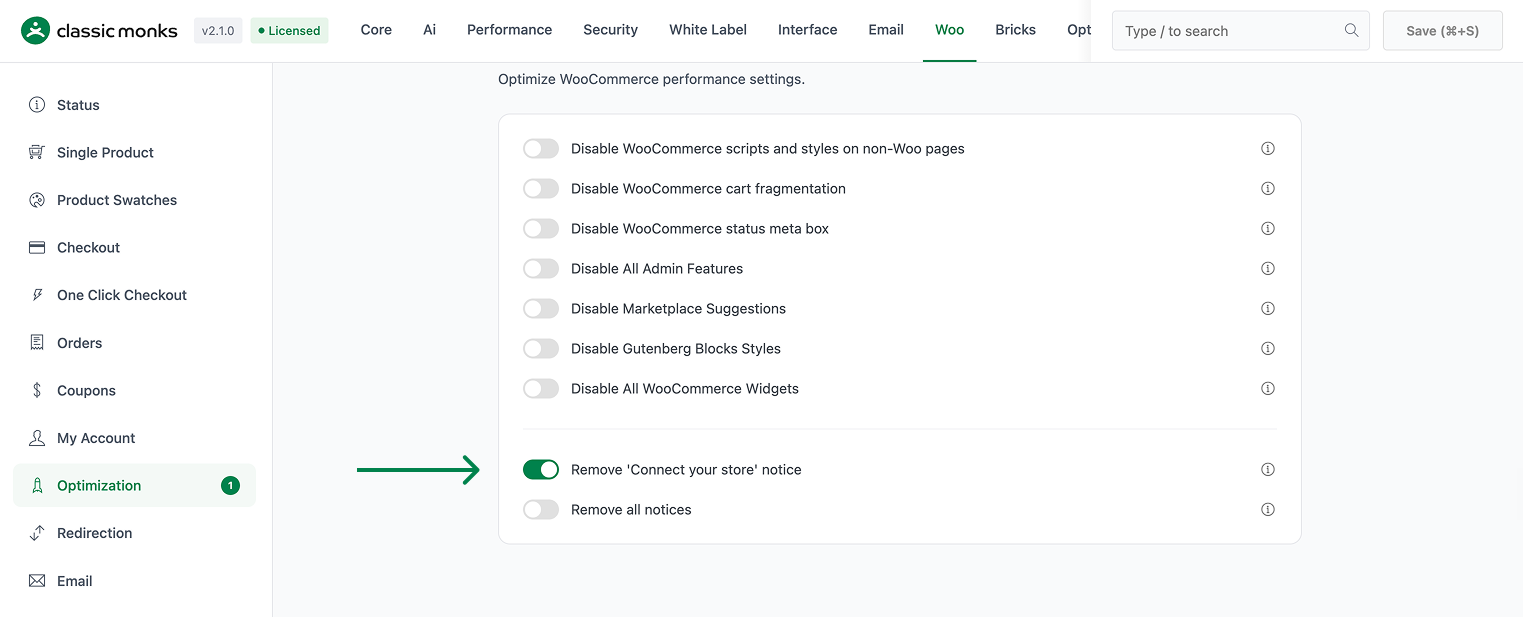
Step 2: Save and Test
Click Save Changes. Reload the WooCommerce admin and confirm the connect notice no longer appears.
Configuration Options
| Option | Default |
|---|---|
| Remove ‘Connect your store’ Notice | Off |
There are no nested options. The feature is a single on/off control.
What Gets Affected
- The admin: the WooCommerce.com connect notice is suppressed
What Does NOT Get Affected
- The WooCommerce.com connection: still available in the admin
- Products, orders, and the shop: unchanged
- Other admin notices: unaffected
Advanced Options (Developers)
The feature registers its logic in functions/woocommerce/woocommerce-functions.php:
add_filter( 'woocommerce_helper_suppress_connect_notice', '__return_true' );woocommerce_helper_suppress_connect_notice returns true when the feature is enabled, which tells WooCommerce to suppress the “Connect your store” helper notice.
Common Use Cases
Stores without a WooCommerce.com account. The connect prompt is irrelevant and adds clutter.
Staging and migration sites. Development environments do not need the marketplace connection prompt.
Focused admin. Any store that keeps its extensions managed elsewhere benefits from hiding the notice.
Keeping It Set Up
Set the toggle once and it stays active across the site. To change behavior, return to the WooCommerce settings, adjust the option, and save again. The store continues to run normally throughout, and you can turn the feature off at any time to restore the previous default behavior. For teams managing multiple environments, confirm the setting on staging first, then apply it to production and verify a real page load before treating it as live.
Connecting Your Store Later
Suppressing the notice does not prevent you from connecting your store at a later time. The WooCommerce.com connection option remains available under the WooCommerce settings whenever you need it. This makes the toggle safe to enable for stores that do not currently use the marketplace, and easy to reverse if that changes. Remove the prompt now, and the connection is still there when the team decides to add WooCommerce.com services.
—Confirm on staging first. Because the change is cosmetic to the admin, it is easy to test on staging and then apply to production. After enabling, check that the WooCommerce settings still show the connection-related login screen, so staff can connect a store later if needed. The suppression point is a filter, so any theme or plugin that also manipulates connect notices should be checked to avoid a conflict.

Add your first comment to this post