




What Is the Staging Environment Indicator feature?
Working on a staging site can be confusing, especially when the staging site looks identical to the production site. The Staging Environment Indicator feature adds a visible banner (e.g., a yellow bar at the top of the admin) that says “STAGING SITE” or similar, so everyone knows they’re not on the production site.
This is a small but important safety feature. The most common staging site accident is: a team member thinks they’re on the staging site, makes a change, but is actually on production. The indicator prevents this by making it visually obvious which environment they’re in.
Why You Need It
Staging site accidents are common and serious:
- Wrong environment edits: A change meant for staging goes to production (or vice versa)
- User confusion: Editors may not realize they’re on staging, leading to confusion
- Data leakage: Test data on staging may be visible to editors
- Email leakage: Staging sites can send emails to real customers
The staging indicator is a low-cost, high-impact way to prevent these accidents.
How to Show the Staging Environment Indicator in WordPress
Step 1: Navigate to Settings
Click into the Classic Monks plugin settings in your WordPress dashboard.
Step 2: Go to the Security Tab
Click on the Security menu, then click the Staging Protection subtab.
Step 3: Enable Show Staging Environment Indicator
Scroll to Show Staging Environment Indicator and toggle on. The indicator appears immediately in the admin.
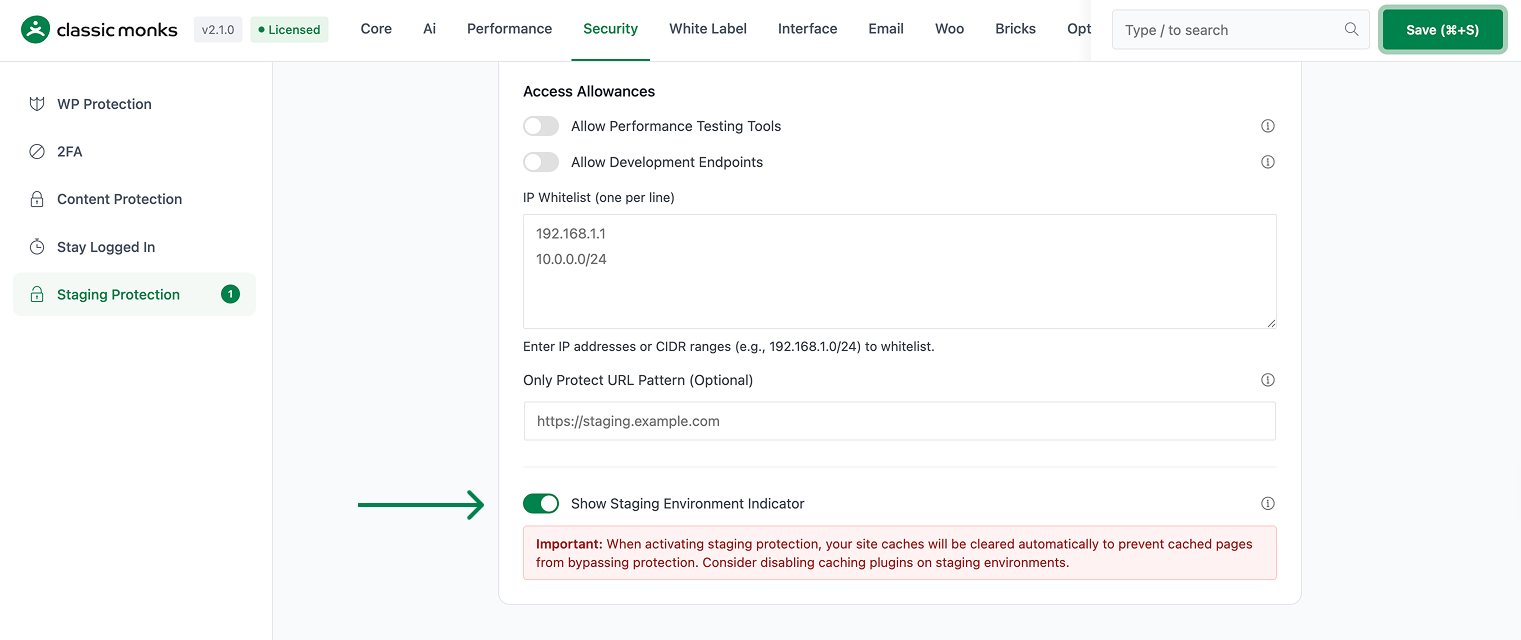
Step 4: Save Changes
Click Save Changes.
Step 5: Test
Visit any admin page. The staging indicator should be visible (e.g., as a yellow bar at the top of the admin).
Configuration Options
| Option | Description | Default |
|---|---|---|
| Show Staging Environment Indicator | Master toggle. | On |
The banner text and color are customizable via filters. The default banner is a yellow bar with the text “STAGING ENVIRONMENT”.
What Gets Affected
- The WordPress admin: the indicator is visible on every admin page
- The frontend: the indicator is NOT shown on the frontend (only admin)
- The user experience: editors see the indicator and know they’re on staging
- The safety: fewer accidents from editing the wrong environment
What Does NOT Get Affected
- The frontend: not affected
- The staging protection (HTTP auth, search engine block, etc.): not affected (this is a separate toggle)
- The user accounts: not affected
- The WordPress functionality: not affected
Advanced Options (Developers)
This feature registers 1 WordPress hook in staging-protection.php:
Actions:
wp_footercallsCM_Staging_Protection::add_staging_indicator()(Renders staging environment indicator bar)
// Hooked in staging-protection.php
add_action( 'wp_footer', 'CM_Staging_Protection::add_staging_indicator' );
The feature modifies WordPress behavior by registering or removing hooks. Disabling it reverses those changes and WordPress returns to its default behavior.

Add your first comment to this post