




What Is the Taxonomy Switcher?
The Taxonomy Switcher is a Classic Monks feature that adds controls for moving posts between taxonomies. It works at two levels:
- Per-post switcher: Edit a post and change which taxonomy terms it belongs to via a dropdown in the edit screen
- Bulk migration: Run a one-time migration of many posts from one taxonomy to another (e.g., move 100 posts from “News” category to “Press Releases” category)
The switcher is useful when you restructure your site’s taxonomy (introducing new categories, merging old ones, or moving from default WordPress categories to a custom taxonomy).
Why You Need It
WordPress’s core admin does not let you change a post’s taxonomy membership easily:
- Moving a post from one category to another requires opening the post, unchecking the old categories, checking the new ones, and saving
- Bulk-migrating 100 posts from one category to another means editing each one individually
- Switching a custom post type from one taxonomy to another (e.g., from “Project Type” to “Service Type”) requires direct database queries
The Taxonomy Switcher in Classic Monks handles both per-post and bulk switches without leaving the admin.
How to Use the Taxonomy Switcher in Classic Monks
Step 1: Navigate to Settings
Click into the Classic Monks plugin settings in your WordPress dashboard.
Step 2: Go to the Content Subtab
Click on the Core menu, then click the Content subtab.
Step 3: Enable Taxonomy Switcher
Toggle on Taxonomy Switcher. No nested options are needed.
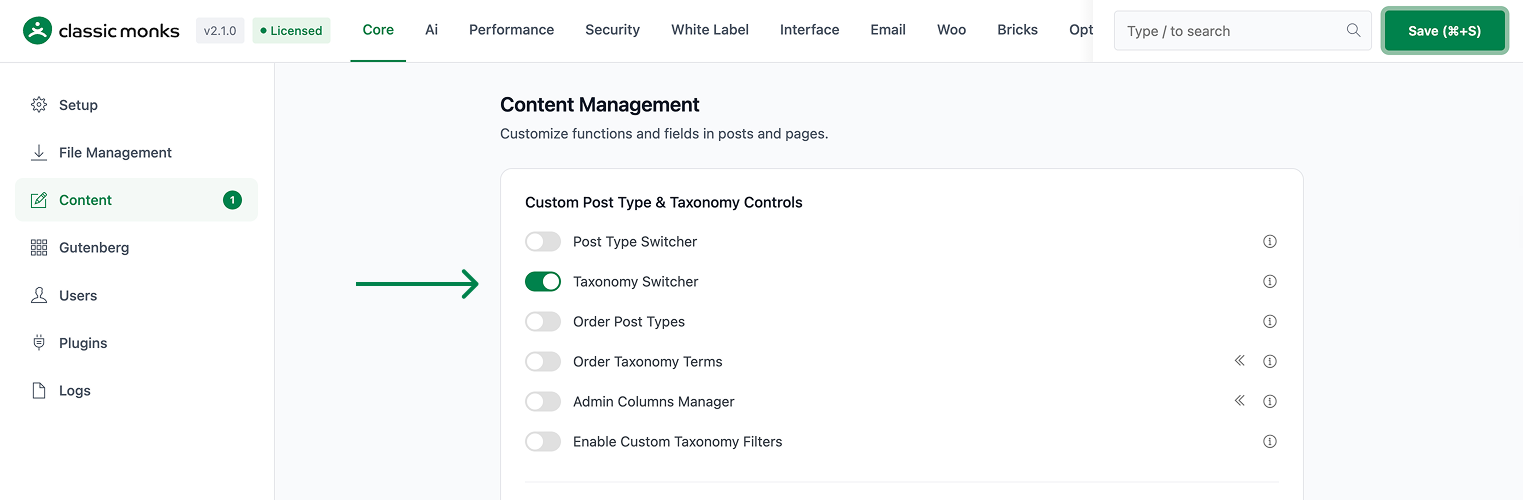
Step 4: Save Changes
Click Save Changes.
Step 5: Open a Post’s Edit Screen
Go to Posts > All Posts and click Edit on a post you want to reassign.
Step 6: Use the Taxonomy Switcher UI
In the right sidebar (or the post body, depending on the taxonomy), the standard WordPress taxonomy meta boxes appear with the switcher enhancements:
- From: A dropdown to pick the source taxonomy (e.g., “Category”)
- To: A dropdown to pick the target taxonomy (e.g., a custom “Topic” taxonomy)
- Terms: The terms to move (or “all” for the entire post’s membership)
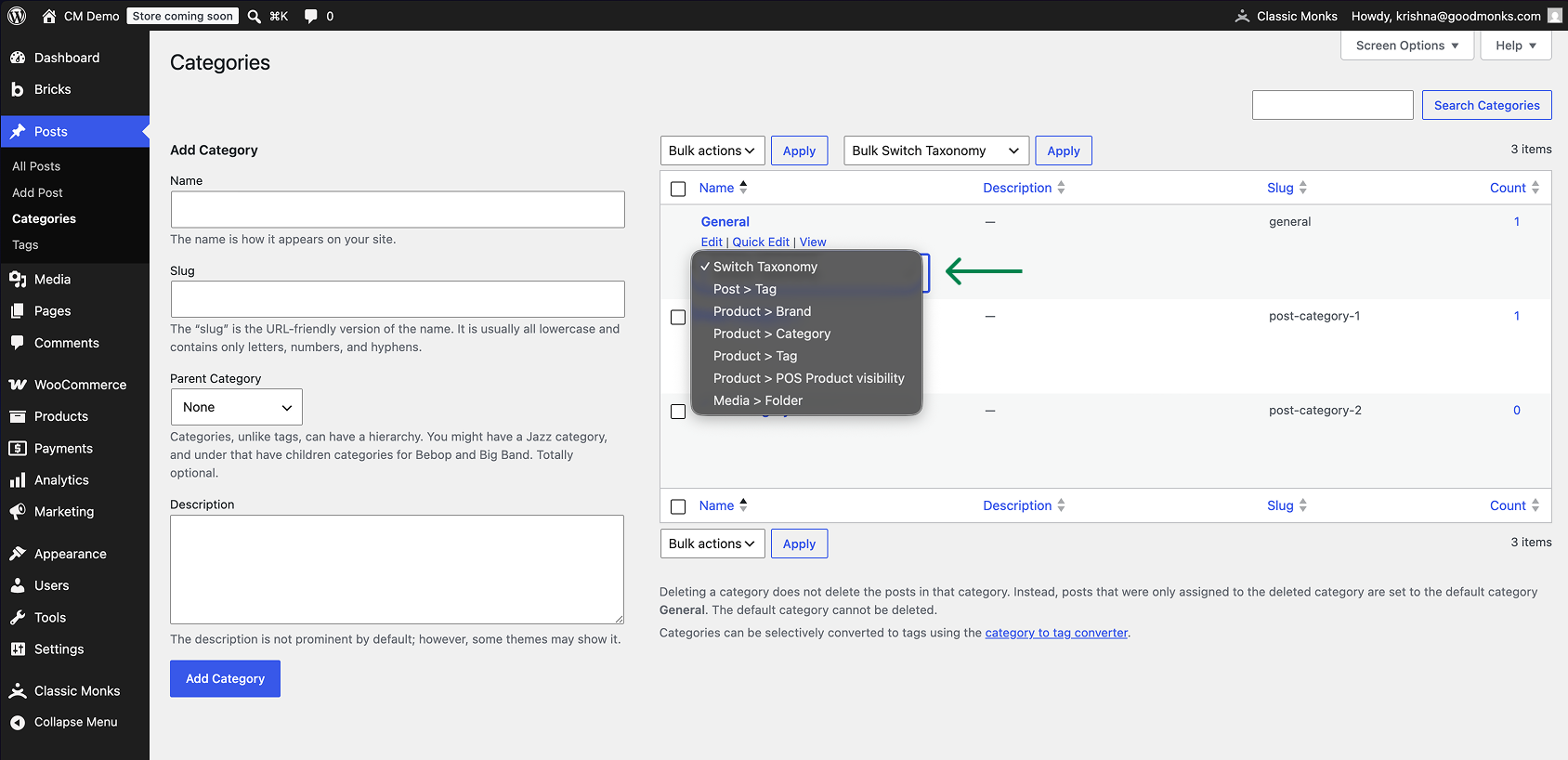
Select the source and target, choose which terms to move, and apply. The post is now associated with the new taxonomy’s terms.
Step 7: Verify the Switch
Reload the post edit screen. The post should now show the new taxonomy’s terms in the standard WordPress term meta box. The old terms (in the source taxonomy) are no longer associated.
Bulk Migration Use Case
The Taxonomy Switcher supports bulk migrations:
- Go to the source taxonomy’s list page (e.g., Posts > Categories)
- Select the terms you want to migrate (or all of them)
- Use the Bulk Actions dropdown to select Switch taxonomy
- Pick the target taxonomy
- Confirm
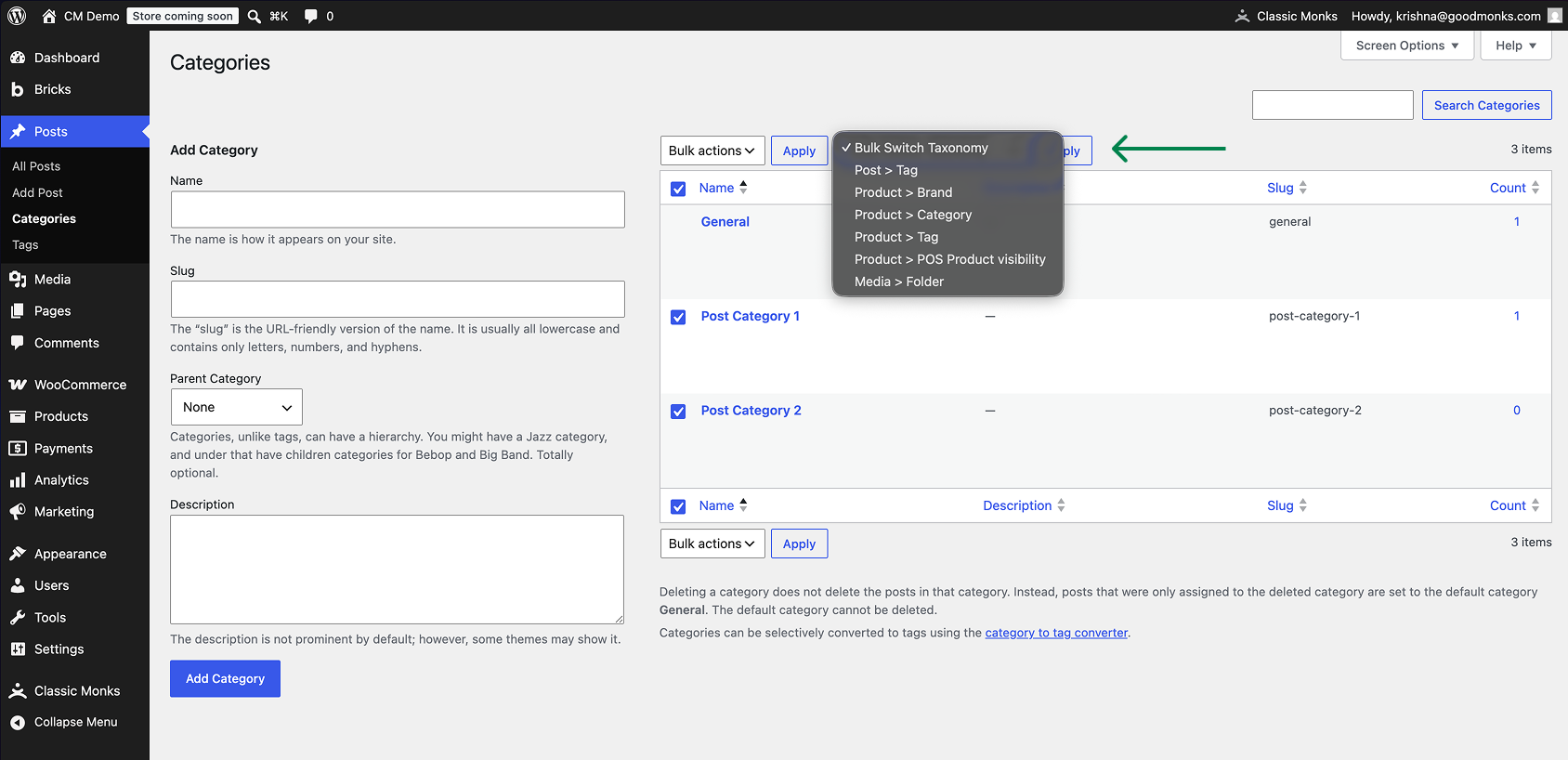
All posts in the selected source terms are moved to the corresponding terms in the target taxonomy. For example, if you migrate the “News” category to the “Press Releases” category, all 30 posts in “News” are now associated with “Press Releases” instead.
Configuration Options
| Option | Description | Default |
|---|---|---|
| Taxonomy Switcher | Master toggle. Adds the switcher UI to the post edit screen and bulk action. | Off |
There are no per-taxonomy controls; the toggle is global.
What Gets Preserved vs. Dropped
| Action | Behavior |
|---|---|
| Move post from “Category” to “Topic” taxonomy | Post is removed from all categories, added to the selected Topic terms |
| Move post from “Category A” to “Category B” | Post is removed from Category A, added to Category B (within the same taxonomy) |
| Bulk migrate 100 posts from “News” to “Press Releases” | All 100 posts removed from News, added to Press Releases |
| Move post’s terms when target taxonomy has no terms yet | The target taxonomy gets a new term created with the same name as the source term, or you specify a target term explicitly |
| Delete source term after migration | Optional. The switcher can leave the source term in place (just no posts associated) or auto-delete it if it becomes empty |
Developer Notes
The Taxonomy Switcher migrates posts between taxonomies. The feature is a single toggle with no developer hooks currently exposed.
Options used:
| Option | Type | Default |
|---|---|---|
enable_taxonomy_switcher |
Boolean | false |
The switcher is loaded via the content management bootstrap in functions/core/content/.

Add your first comment to this post