

What Is the Stay Logged In feature?
By default, WordPress’s “Remember Me” checkbox extends the auth cookie to 14 days. The Stay Logged In feature extends this to 30 days (configurable).
The difference: 14 days vs 30 days may not seem significant, but for users who frequently visit your site, it means fewer login interruptions.
Why You Need It
The default 14-day auth cookie is fine for most sites, but for some use cases, a longer duration is better:
- Frequent visitors: Users who visit the site daily benefit from fewer login interruptions
- Internal tools: For sites used as internal tools (e.g., a CRM, project management), users don’t want to log in every 2 weeks
- Trusted environments: For sites in trusted environments (e.g., company intranets), longer sessions are appropriate
- E-commerce admin: For store admins, frequent logins are disruptive
For most public-facing sites, 14 days is appropriate. For internal tools or trusted environments, 30 days is a small improvement.
Trade-offs vs standard 14-day session
Extending the session has trade-offs:
- Lost device: A 30-day session is still valid after the device is lost or stolen
- Compromised credentials: If a user’s password is compromised, the attacker has up to 30 days of access
- Compliance: Some regulations require shorter session durations for sensitive data
- User experience: For users who share devices, the longer session is a risk
For most sites, the trade-offs favor the standard 14-day session.
How to Enable Stay Logged In in WordPress
- Step 1
Navigate to Settings
Click into the Classic Monks plugin settings in your WordPress dashboard.
- Step 2
Go to the Security Tab
Click on the Security menu, then click the Stay Logged In subtab.
- Step 3
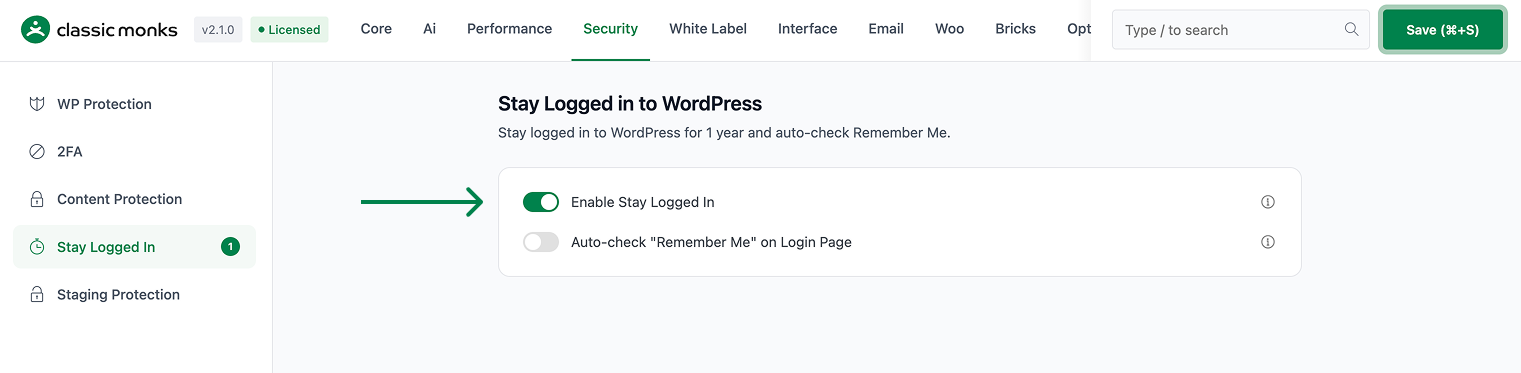
Enable Stay Logged In
Scroll to Enable Stay Logged In and toggle on.
- Step 4
Save Changes
Click Save Changes.
- Step 5
Test
Log in with the “Remember Me” checkbox checked. Close the browser. Wait 15 days (or manually advance the system clock). Log in again. The session should still be valid.
Configuration Options
| Option | Description | Default |
|---|---|---|
| Enable Stay Logged In | Master toggle. | Off |
The session duration is set to 30 days by default. To customize, adjust the session duration in the plugin settings under Security > Stay Logged In.
What Gets Affected
- The auth cookie duration: extended to 30 days
- The user experience: fewer login interruptions
- The security: slightly reduced (longer window for compromised credentials)
- The session management: still works the same way (login, logout, expire)
What Does NOT Get Affected
- The user roles: not affected
- The WordPress admin: not affected (after login)
- The REST API: not affected
- The application passwords: not affected
Advanced Options (Developers)
This feature registers 2 WordPress hooks in stay-logged-in.php:
Actions:
login_footercallscm_remember_me_checked()(Auto-checks Remember Me checkbox)
Filters:
auth_cookie_expirationcallscm_stay_logged_in()(Extends cookie expiration time)
// Hooked in stay-logged-in.php
add_filter( 'auth_cookie_expiration', 'cm_stay_logged_in' );
The feature modifies WordPress behavior by registering or removing hooks. Disabling it reverses those changes and WordPress returns to its default behavior.
Troubleshooting
4 problems and how to fix each one.
The session still expires after 14 days
Cause: The toggle is off, or another plugin is resetting the auth cookie.
Fix: Verify the toggle is on. Check for plugins that filter the auth_cookie_expiration hook and reset the duration.
The session is too long
Cause: The default 30-day duration is too long for some use cases.
Fix: Adjust the session duration in the plugin settings under Security > Stay Logged In. For per-role control, configure different durations for different user roles in the settings.
Users are being logged out unexpectedly
Cause: The auth cookie may be cleared by browser settings or privacy extensions.
Fix: Check browser settings. The auth cookie is stored as a persistent cookie, so “Clear cookies on exit” will not clear it (but “Clear all cookies” will).
I want to log out users on a schedule
Cause: The session extension is passive (no auto-logout).
Fix: Use the Auto Logout feature for active session management. Or use a custom plugin to periodically force logout of inactive users.
