




What Is Bricks Import and Export
Bricks Import and Export is a tool in the Classic Monks Bricks tab, Import/Export subtab, that lets you move Bricks Builder data between sites. You can export the Bricks settings you choose to a JSON file, import that file on another site, or reset the Bricks options to their defaults. It covers the common Bricks data stored in the site options.
Recommendations Before Using
- Back up your site before importing. Importing can overwrite existing Bricks data, so take a backup first.
- Use the overwrite option carefully. When you import with overwrite, the existing settings are replaced. Without it, new entries are added without duplicating existing ones.
- Export from a clean source. Export after confirming the source site has the settings you want to move.
Export Bricks Settings
Step 1: Open the Bricks Tab
In your WordPress dashboard, go to Classic Monks, then open the Bricks tab.
Step 2: Open the Import/Export Subtab
Click the Import/Export subtab.
Step 3: Select What to Export
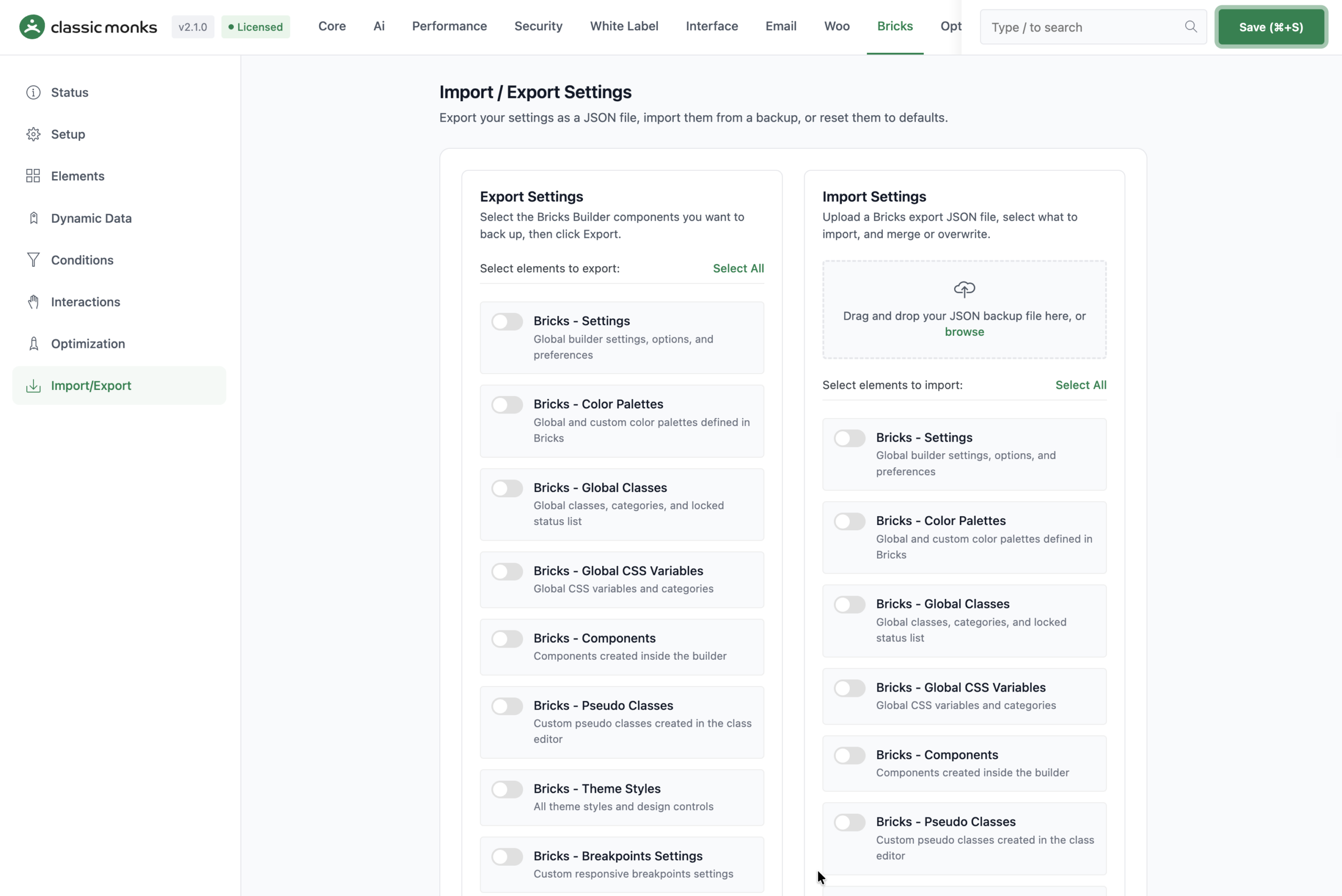
In the Export section, check the items you want to export. You can export:
- Global Settings
- Color Palettes
- Global Classes
- Global CSS Variables
- Components
- Pseudo Classes
- Theme Styles
- Breakpoints Settings
Step 4: Export the Data
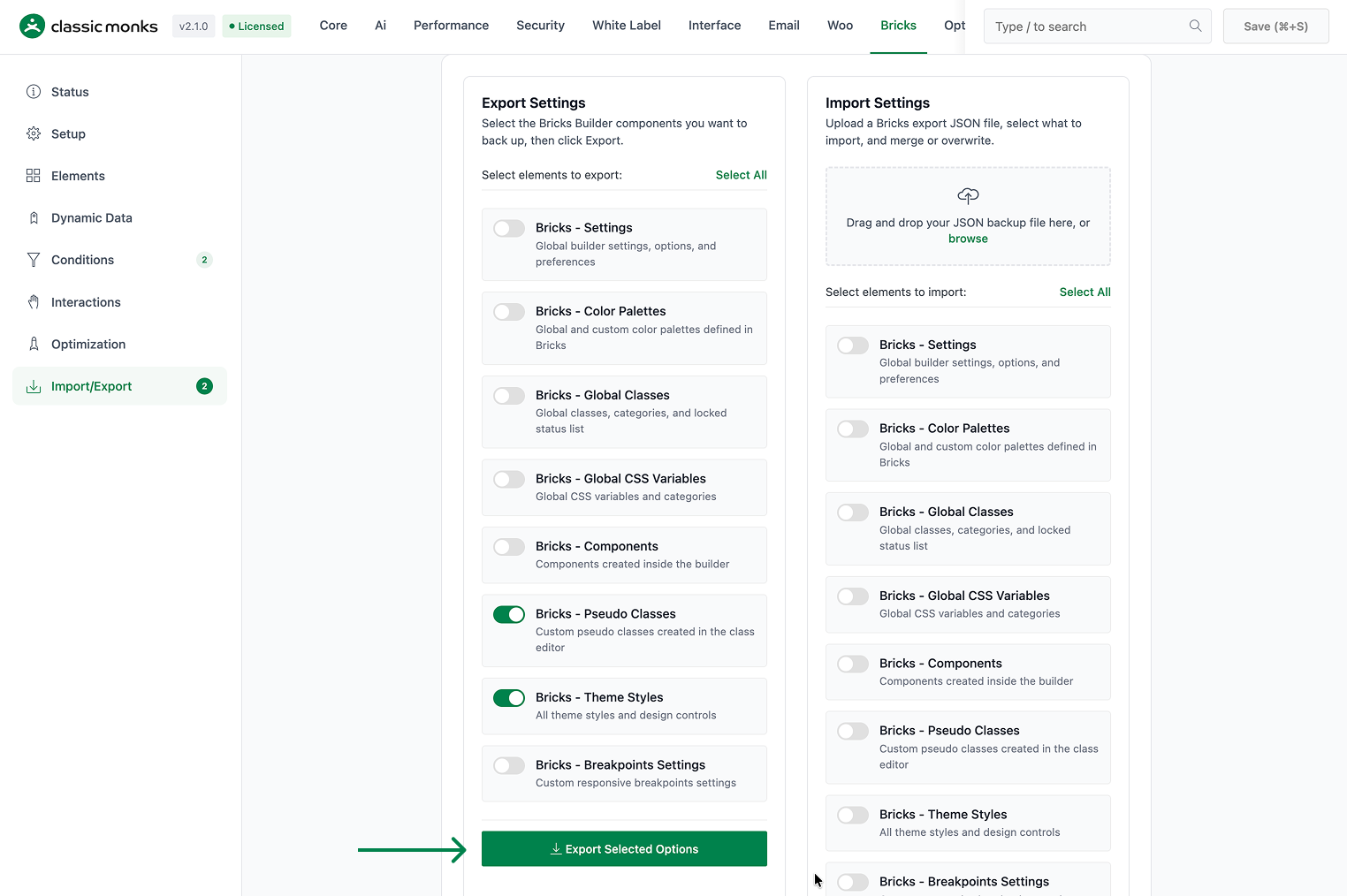
Click the export button. The selected settings are returned as a JSON object that you can save as a file.
Import Bricks Settings
Step 1: Open the Import/Export Subtab
Go to Classic Monks, Bricks tab, Import/Export subtab.
Step 2: Select What to Import
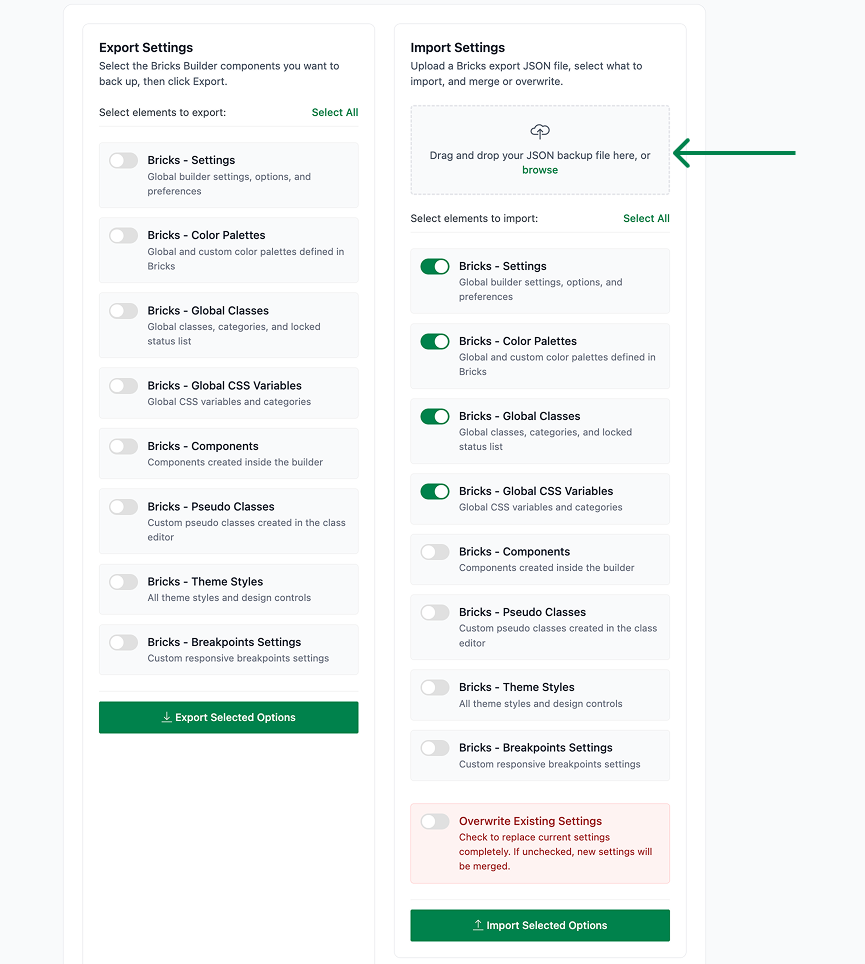
In the Import section, check the items you want to import.
Step 3: Upload the JSON File
Upload the JSON file you exported from the source site. You can choose to overwrite existing settings or add to them.
Step 4: Import and Verify
Click the import button. When the import finishes, open the Bricks editor to confirm the settings are applied.
Reset Bricks Settings
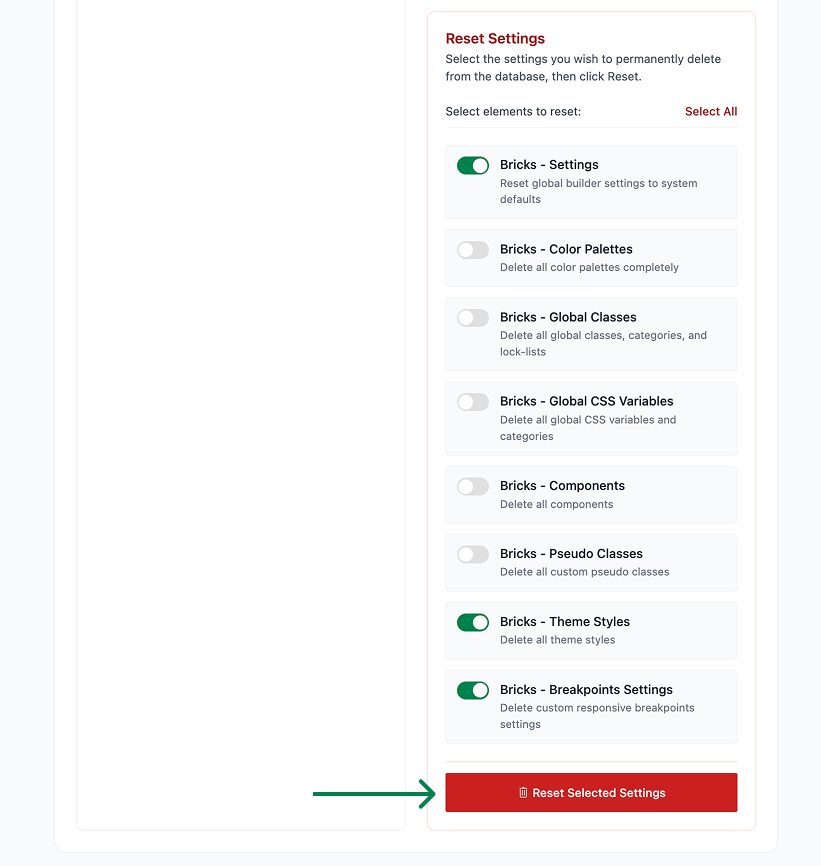
In the Reset section of the Import/Export subtab, check the items you want to reset and click the reset button. The selected Bricks options are deleted and return to their defaults. This is useful for clearing a misconfigured Bricks setup.
Verify It Works
After importing or resetting, verify the result:
- Open the Bricks editor and confirm the imported settings appear.
- Check that color palettes, classes, and variables are present.
- After a reset, confirm the Bricks settings return to their defaults.
If the import does not apply, confirm the JSON file is valid and the items were selected.
Examples
Example 1: Move a Bricks Site to a New Host
A user moves a Bricks site to a new host. On the old site, they export the global settings, color palettes, and theme styles. On the new site, they import the JSON file. The new site has the same Bricks foundation without rebuilding it.
Example 2: Set Up a Second Site With the Same Design
An agency builds a second site for a client with the same design as an existing one. They export the settings from the first site and import them on the second. The design foundation is consistent across both sites.
Example 3: Reset a Misconfigured Setup
A user made many changes to a Bricks site and wants to start over. They use the Reset section to clear the global settings, classes, and variables. The Bricks options return to their defaults.

Add your first comment to this post