




What Does the Feature Do?
The default add to cart button always says “Add to Cart”. The Customize Add to Cart Button Text feature replaces it per product type and adds layered, context-aware text options:
- Per product type: different base text for simple, variable, grouped, and external products.
- Dynamic stock text: show urgency or popularity wording based on stock and sales velocity.
- Personalized text: show different wording for guests, logged-in users, and customers who previously bought the product.
- Category-specific text: map a button label to a product category (for example, “Download Now” for digital products).
Each layer is optional, so you can enable only what your store needs.
Why You Need It
Context-appropriate button text improves the purchase path:
- Variable products work better with “Select Options” and grouped products with “View Products”
- Stock urgency (“Only 3 left!”) encourages faster purchase decisions
- A returning-customer “Buy Again” feels personalized and quick
- Category mappings let digital or service products use clearer actions
How to Customize the Add to Cart Button Text in WooCommerce
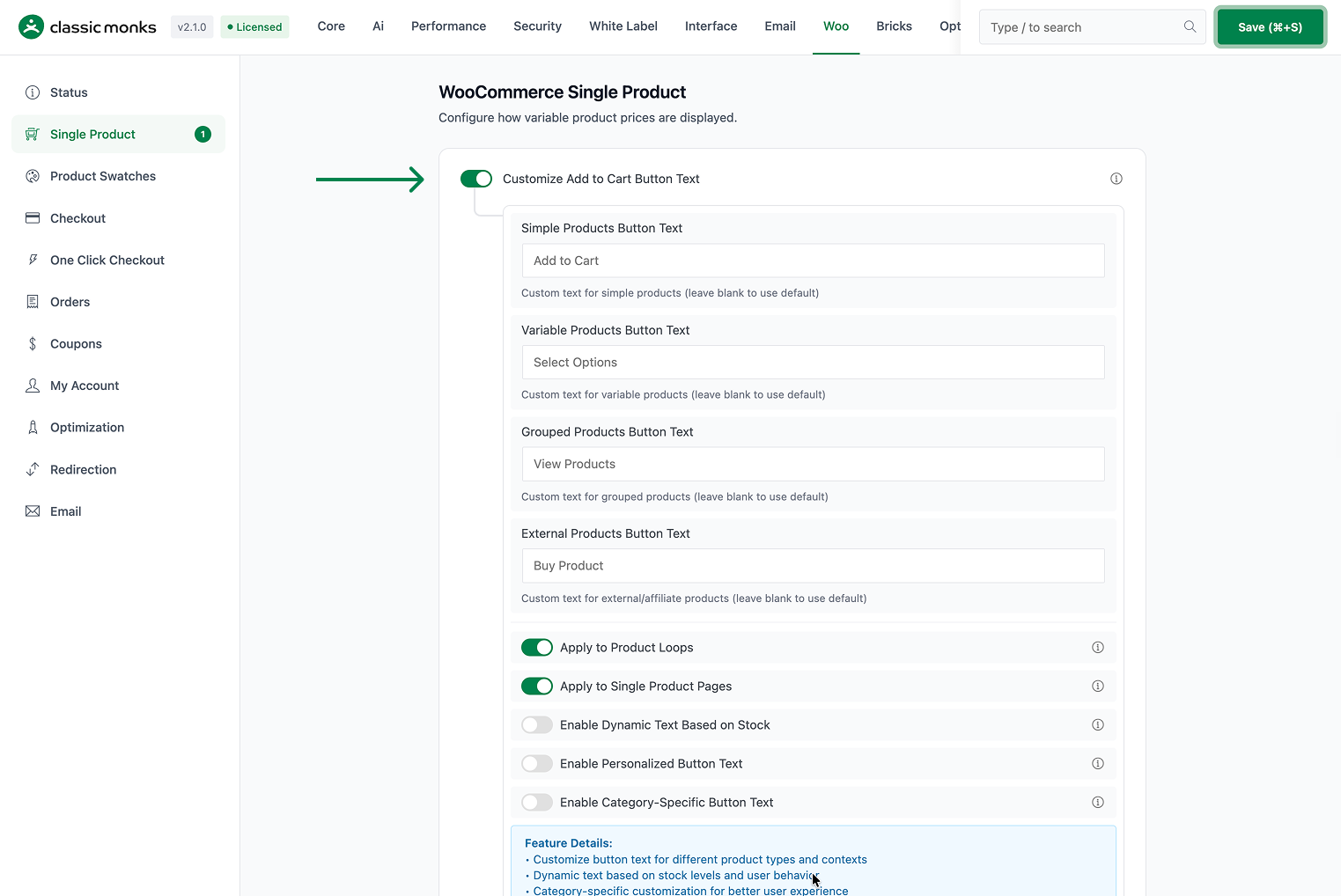
Step 1: Enable the Feature
- In WordPress admin, open Classic Monks > WooCommerce.
- Open the Single Product settings area.
- Toggle on Customize Add to Cart Button Text. The nested options expand below the toggle.
Step 2: Set the Base Text per Product Type
- Simple Products Button Text (default
Add to Cart). - Variable Products Button Text (default
Select Options). - Grouped Products Button Text (default
View Products). - External Products Button Text (default
Buy Product).
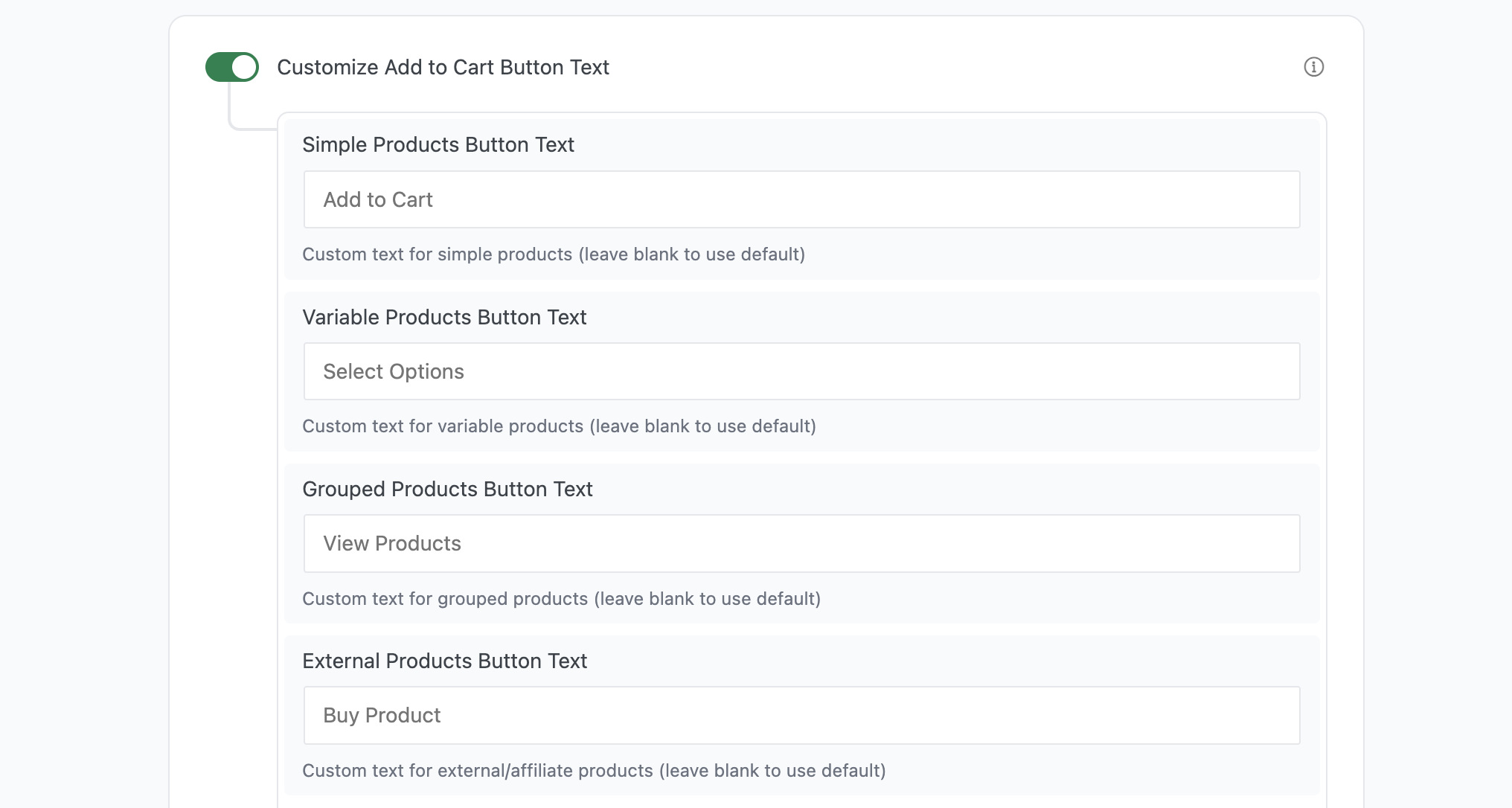
Leave a field blank to use the default for that product type.
Step 3: Set the Scope
- Apply to Product Loops (on by default) applies the text to shop, category, and archive pages.
- Apply to Single Product Pages (on by default) applies it to individual product pages.

Step 4: Add Dynamic Stock Text (Optional)
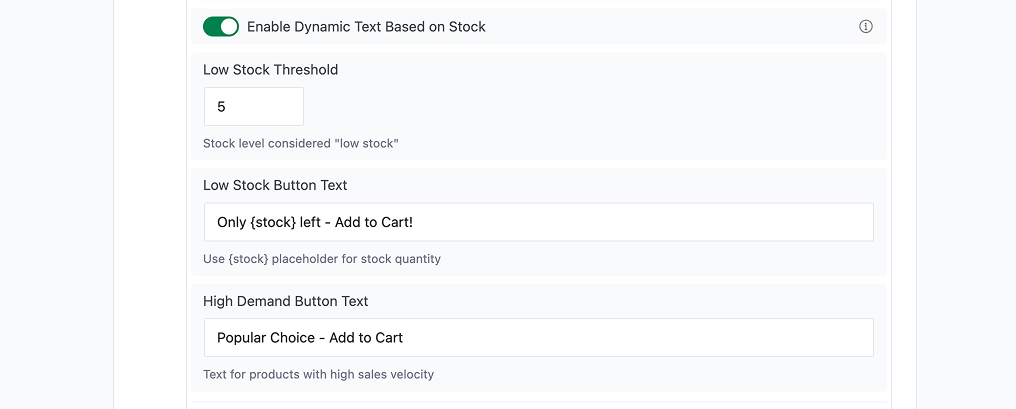
Toggle on Enable Dynamic Text Based on Stock, then set:
- Low Stock Threshold (default 5): the stock level considered low.
- Low Stock Button Text (default
Only {stock} left - Add to Cart!): shown when stock is low. Use{stock}for the quantity. - High Demand Button Text (default
Popular Choice - Add to Cart): shown for products with high sales velocity.
Step 5: Add Personalized Text (Optional)
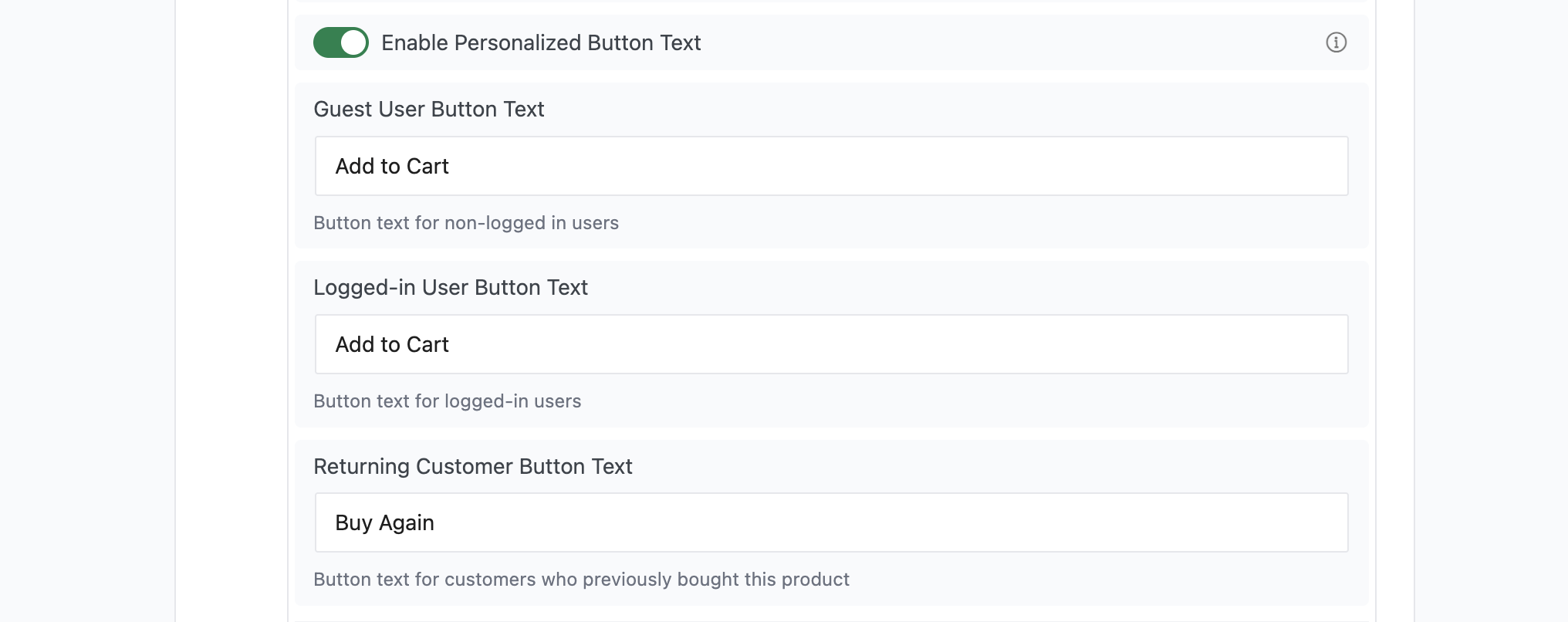
Toggle on Enable Personalized Button Text, then set:
- Guest User Button Text (default
Add to Cart): for non-logged-in users. - Logged-in User Button Text (default
Add to Cart): for logged-in users. - Returning Customer Button Text (default
Buy Again): for customers who previously bought the product.
Step 6: Add Category-Specific Text (Optional)
Toggle on Enable Category-Specific Button Text, then add one rule per line in Category-Specific Rules using the format category-slug:Button Text.
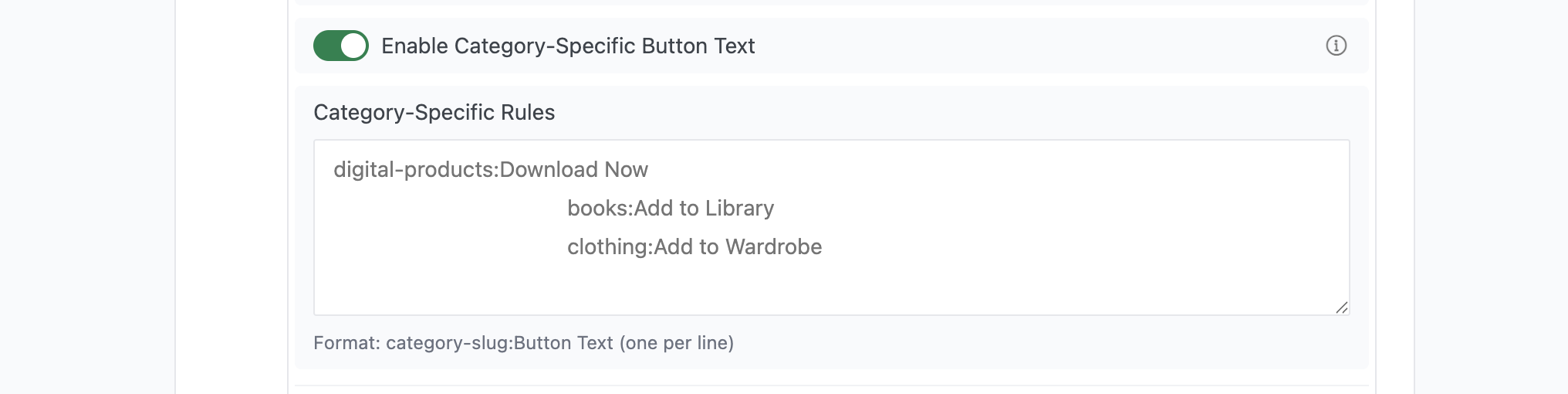
For example:
digital-products:Download Now
books:Add to Library
clothing:Add to Wardrobe
Step 7: Save and Test
Click Save Changes. Visit a single product page and a shop page. Confirm the button text reflects the product type and any dynamic, personalized, or category rules you set. Test as both a guest and a logged-in user.
Configuration Options
| Option | Behavior | Default |
|---|---|---|
| Customize Add to Cart Button Text | Master toggle. | Off |
| Simple Products Button Text | Base text for simple products. | Add to Cart |
| Variable Products Button Text | Base text for variable products. | Select Options |
| Grouped Products Button Text | Base text for grouped products. | View Products |
| External Products Button Text | Base text for external/affiliate products. | Buy Product |
| Apply to Product Loops | Apply text to shop, category, archive pages. | On |
| Apply to Single Product Pages | Apply text to single product pages. | On |
| Enable Dynamic Text Based on Stock | Use stock-based and demand-based text. | Off |
| Low Stock Threshold | Stock count considered low (1-100). | 5 |
| Low Stock Button Text | Text when stock is low; supports {stock}. |
Only {stock} left - Add to Cart! |
| High Demand Button Text | Text for products with high sales velocity. | Popular Choice - Add to Cart |
| Enable Personalized Button Text | Use different text for guests, logged-in, and returning users. | Off |
| Guest User Button Text | Text for non-logged-in users. | Add to Cart |
| Logged-in User Button Text | Text for logged-in users. | Add to Cart |
| Returning Customer Button Text | Text for previous buyers of the product. | Buy Again |
| Enable Category-Specific Button Text | Apply per-category button text. | Off |
| Category-Specific Rules | One rule per line: category-slug:Button Text. |
Blank |
What Gets Affected
- The add to cart button on single product pages and loops, per the scope toggles
- Product types with filled-in base text fields
- Stock and demand text when the dynamic option is on
- Personalized text when the personalized option is on
- Category text when the category option is on
What Does NOT Get Affected
- The cart and checkout buttons: those are separate WooCommerce buttons
- Button styling, icons, and AJAX add-to-cart behavior: only the text changes
- Product types with blank fields: these keep the default text
- Quick view or cart widget buttons from other plugins
Advanced Options (Developers)
The feature registers hooks in functions/woocommerce/woocommerce-functions.php, gated on the feature and scope options:
add_filter( 'woocommerce_product_single_add_to_cart_text', 'cm_custom_add_to_cart_text', 10, 2 );
add_filter( 'woocommerce_product_add_to_cart_text', 'cm_custom_add_to_cart_text', 10, 2 );woocommerce_product_single_add_to_cart_textapplies when Apply to Single Product Pages is on.woocommerce_product_add_to_cart_textapplies when Apply to Product Loops is on.
cm_custom_add_to_cart_text() resolves the text in layers: category-specific rules, personalized text (guest, logged-in, or returning), dynamic stock and demand text, then the per-product-type base value. Helper functions cm_get_category_specific_button_text, cm_parse_category_rules, cm_get_personalized_button_text, cm_has_user_purchased_product, cm_apply_dynamic_text_modifications, and cm_is_high_demand_product handle each layer.

Add your first comment to this post