




What Does the Feature Do?
When a customer selects a variation, WooCommerce knows the new price but many themes do not refresh the displayed price smoothly. The Update Price on Variation Selection feature makes the price update in real time when a variation is chosen, using your theme’s price container markup.
Because themes differ in how they structure the product and price areas, the feature lets you provide the CSS selectors it targets. You specify which element wraps the product and which element holds the price, so the update works regardless of your theme’s markup.
Why You Need It
Real-time price feedback removes a common point of doubt in the purchase flow:
- Customers see the exact price for the variation they chose before adding to cart
- Comparing prices across variations (for example, Small vs Large) is immediate
- No surprise at checkout when the final price differs from the shown one
- The default selectors work on most themes, with overrides available for custom layouts
How to Update Price on Variation Selection in WooCommerce
Step 1: Enable the Feature
- In WordPress admin, open Classic Monks > WooCommerce.
- Open the Single Product settings area.
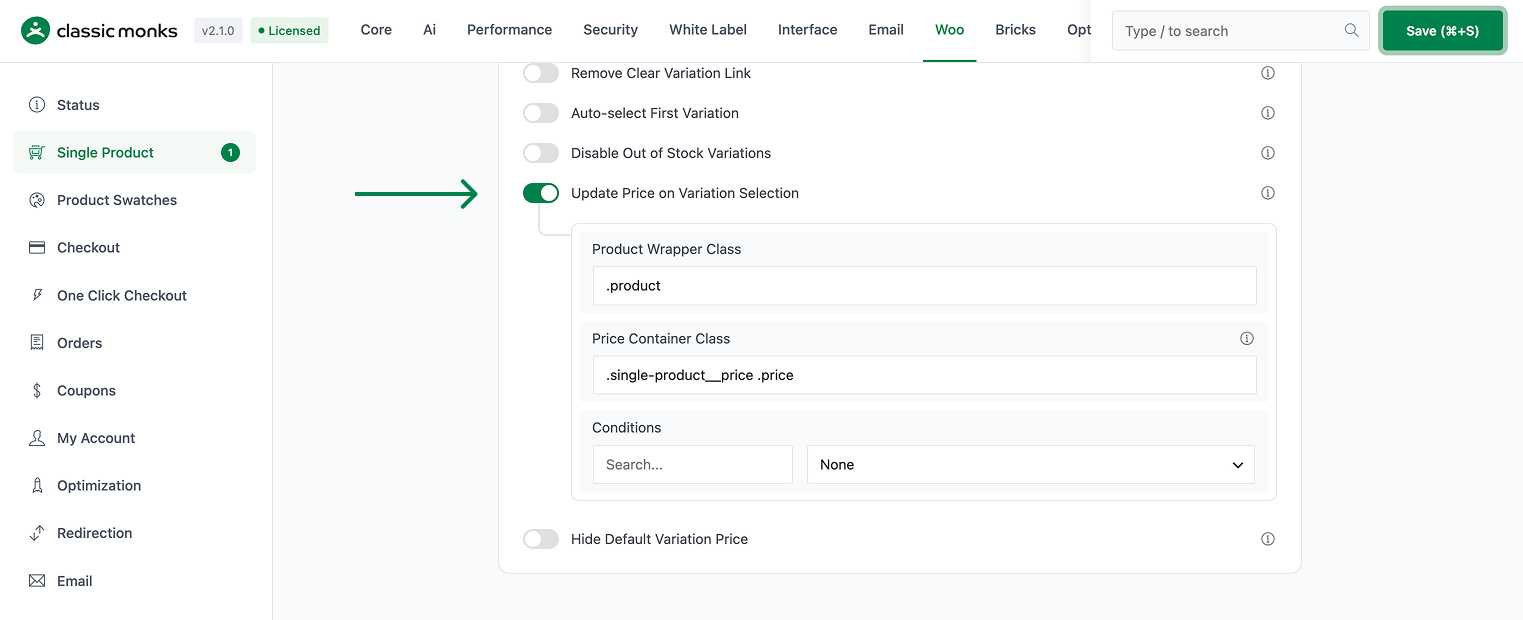
- Toggle on Update Price on Variation Selection. The nested options expand below the toggle.
Step 2: Set the Target Selectors
- Product Wrapper Class: the element that wraps the product. Default
.product. Example value:.product-type-variable. - Price Container Class: the element that holds the price. Default
.single-product__price .price. Use a selector matched to your theme’s price markup.
Step 3: Set Conditions (Optional)
Use Conditions to control when the update applies:
- None: update the price for all variable products.
- Exclude Sale Products: do not update for products on sale.
- Only Sale Products: update only for products on sale.

Step 4: Save and Test
Click Save Changes. Open a variable product, select a different variation, and confirm the displayed price updates to match the selected variation. If it does not, adjust the Price Container Class to match your theme’s price element.
Configuration Options
| Option | Behavior | Default |
|---|---|---|
| Update Price on Variation Selection | Master toggle. | Off |
| Product Wrapper Class | CSS selector for the element wrapping the product. | .product |
| Price Container Class | CSS selector for the element that holds the price. | .single-product__price .price |
| Conditions | None, Exclude Sale Products, or Only Sale Products. | None |
What Gets Affected
- The displayed price on the variable product page: refreshes when a variation is selected
- The price container identified by Price Container Class: this is the element that updates
What Does NOT Get Affected
- The variation’s actual price data: those are set in WooCommerce > Products > Variations
- The variation image and other product elements: only the price container updates
- Simple products: they have no variations to select
- Tax behavior: how prices include tax is controlled by WooCommerce tax settings
Advanced Options (Developers)
The feature registers its hooks in functions/woocommerce/variation-display.php, gated on the Update Price on Variation Selection toggle:
add_filter( 'woocommerce_variable_price_html', 'cm_modify_variable_price_html', 10, 2 );
add_action( 'wp_enqueue_scripts', 'cm_variation_scripts', 20 );
add_action( 'wp_enqueue_scripts', 'cm_variation_price_scripts' );
add_action( 'wp_enqueue_scripts', 'cm_add_variation_animation_styles' );
add_action( 'wp_enqueue_scripts', 'cm_live_price_update' );woocommerce_variable_price_html(cm_modify_variable_price_html) adjusts the variable price output.- The
wp_enqueue_scriptsactions load the scripts and styles that perform the live price refresh, using the Product Wrapper Class, Price Container Class, and Conditions to know which price element to target and when.

Add your first comment to this post