




What Does the Feature Do?
WooCommerce shows a “Read More” button for out of stock products, which is confusing because there is nothing to read into a purchase. The Customize Out of Stock Button Text feature replaces that with your own message and controls how the button behaves.
For each out of stock product it applies your chosen text and style, scoped to loops, single pages, or both. Variable products can be included when all of their variations are out of stock.
Why You Need It
A clear out-of-stock message improves the purchase experience:
- “Read More” tells customers nothing about whether the product returns
- “Out of Stock” or “Sold Out” communicates stock status honestly
- A disabled button prevents dead-end clicks, while a link to the product page lets customers see details or alternatives
- Hiding the button entirely cleans up shop grids for permanently discontinued items
- Consistent messaging across shop and product pages reduces confusion
How to Customize the Out of Stock Button in WooCommerce
Step 1: Enable the Feature
- In WordPress admin, open Classic Monks > WooCommerce.
- Open the Single Product settings area.
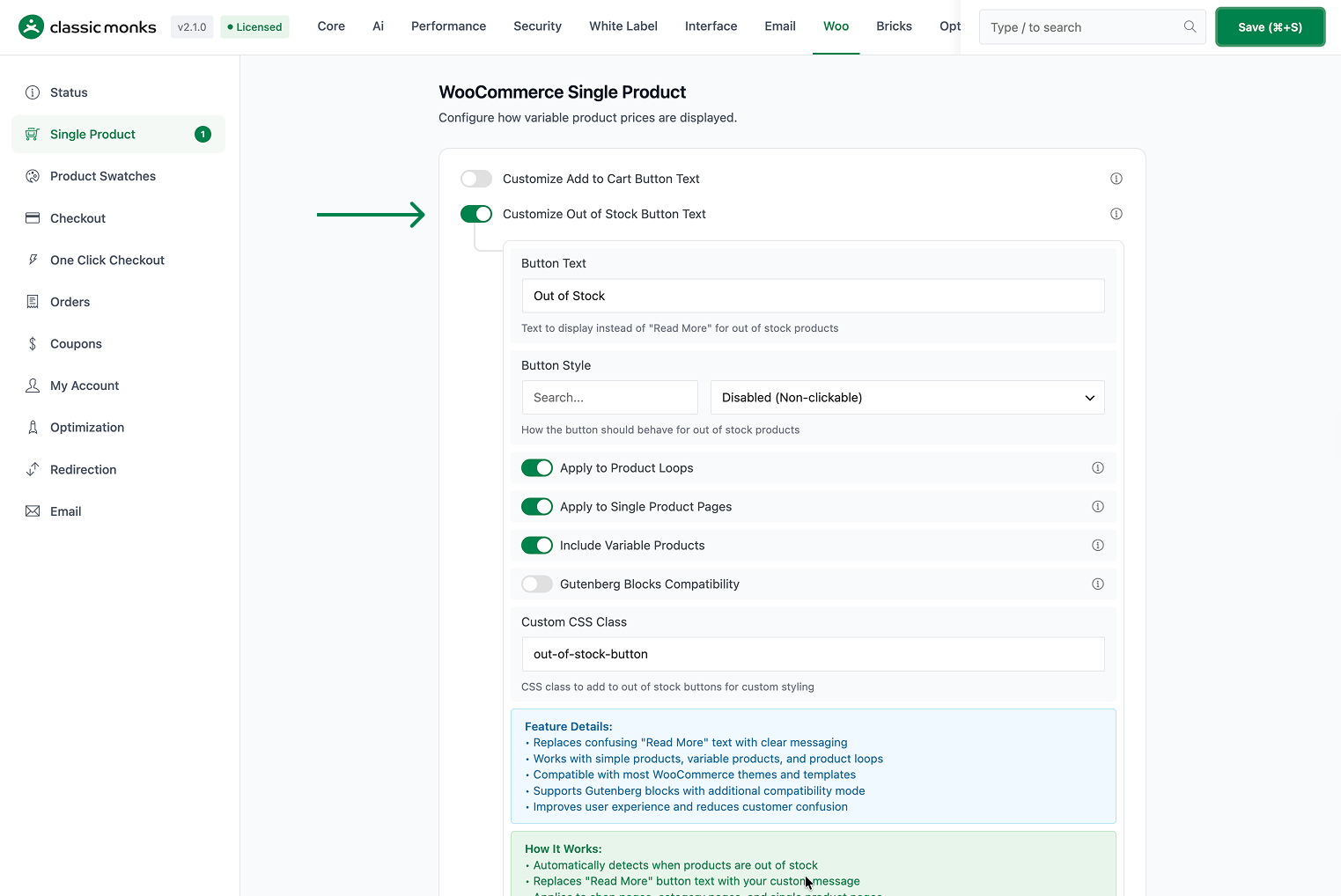
- Toggle on Customize Out of Stock Button Text. The nested options expand below the toggle.
Step 2: Set the Button Text
In Button Text, enter the message to show (default Out of Stock). Use wording that tells customers the product is unavailable, such as Out of Stock, Sold Out, or Unavailable.

Step 3: Choose the Button Style
Use Button Style to control how the button appears:
- Disabled (Non-clickable): the button is visible but cannot be clicked.
- Link to Product Page: the button links to the product page so customers can see details or alternatives.
- Hide Button Completely: the button does not render at all.

Step 4: Choose the Scope
- Apply to Product Loops (on by default) applies to shop, category, and archive pages.
- Apply to Single Product Pages (on by default) applies to individual product pages.
- Include Variable Products (on by default) applies to variable products when all variations are out of stock.

Step 5: Configure Styling Options
- Gutenberg Blocks Compatibility (off by default) enables support for WooCommerce Gutenberg blocks (requires additional CSS).
- Custom CSS Class (default
out-of-stock-button) adds the class to out of stock buttons for custom styling.

Step 6: Save and Test
Click Save Changes. Set a product to out of stock (Inventory > Stock status) and visit it on the front end. Verify the text, style, and scope match your configuration.
Configuration Options
| Option | Behavior | Default |
|---|---|---|
| Customize Out of Stock Button Text | Master toggle. | Off |
| Button Text | Message shown for out of stock products. | Out of Stock |
| Button Style | Disabled (Non-clickable), Link to Product Page, or Hide Button Completely. | Disabled (Non-clickable) |
| Apply to Product Loops | Apply to shop, category, and archive pages. | On |
| Apply to Single Product Pages | Apply to individual product pages. | On |
| Include Variable Products | Apply when all variations of a variable product are out of stock. | On |
| Gutenberg Blocks Compatibility | Support WooCommerce Gutenberg blocks (requires extra CSS). | Off |
| Custom CSS Class | CSS class added to out of stock buttons. | out-of-stock-button |
What Gets Affected
- Out of stock products on loops and single pages, per the scope toggles
- The button text, style, and visibility for those products
- Variable products whose variations are all out of stock, when Include Variable Products is on
- Button styling through the custom CSS class and Gutenberg compatibility mode
What Does NOT Get Affected
- The add to cart button on in stock products (use Customize Add to Cart Button Text for that)
- The in-stock badge, stock quantity, or product meta display
- The admin order details: the button is front end only
- Product data and inventory: the feature only changes the button, not stock status
Advanced Options (Developers)
The feature registers its hooks in functions/woocommerce/variation-display.php:
add_filter( 'woocommerce_product_add_to_cart_text', 'cm_customize_out_of_stock_button_text', 5, 2 );
add_filter( 'woocommerce_loop_add_to_cart_link', 'cm_customize_out_of_stock_button_loop', 10, 3 );
add_action( 'wp_head', 'cm_add_out_of_stock_button_styles' );

// When Gutenberg blocks compatibility is enabled:
add_filter( 'woocommerce_blocks_product_grid_item_html', 'cm_customize_gutenberg_out_of_stock_button', 10, 3 );woocommerce_product_add_to_cart_text(priority 5) replaces the button text with your custom message.woocommerce_loop_add_to_cart_link(priority 10) rebuilds the loop button according to the chosen style (disabled, link, or hidden).wp_headinjects the out of stock button styles and the custom CSS class.woocommerce_blocks_product_grid_item_htmlis registered only when Gutenberg Blocks Compatibility is on.

Add your first comment to this post